Getting started · Pokémon Champions doubles tracker
Battle Like a
Champion.
Replay the Glory.
Champions don't guess. They know their game. VGC Battle Lens watches every doubles match live off your Switch (or imported from a Showdown replay) and turns it into the win rates, lead pairs, matchup history and more. The app shows you what's actually working. Here's how to get your first stats on the board.
The 60-second version
Make a team
Name it, then paste a PokéPaste link to fill the roster in one go.
Get a battle in
Record live from your Switch or paste Showdown replays for instant results.
Read your stats
Open Analytics for win rates, lead pairs, matchups, and move usage.
Walk through it once
Follow this the first time and you'll have real data on the board before your next ladder session. Every screen is drill-down from the home list, so you can always back out and try another route.
Make your first team
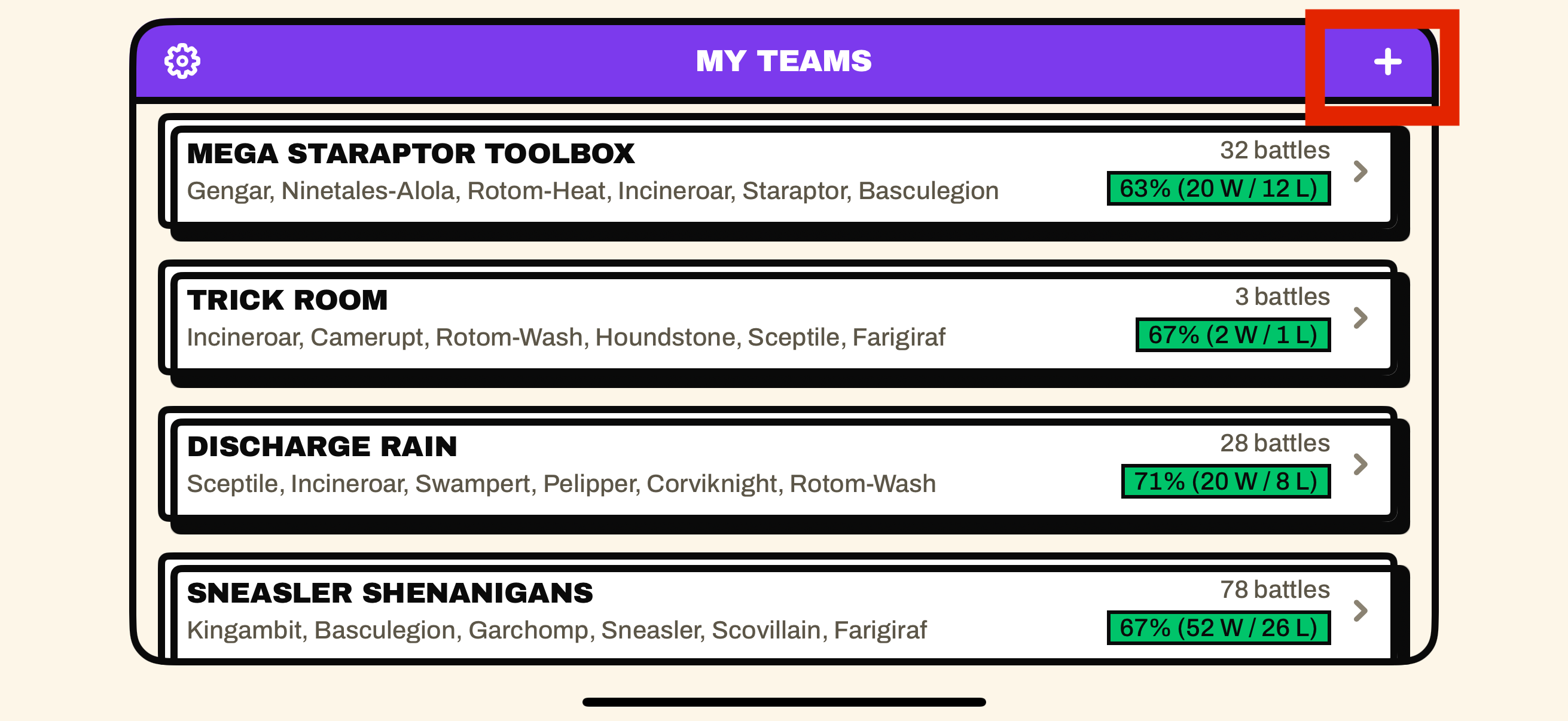
Open My Teams and tap + . Give it a name you'll recognise on the ladder, like "Rain", "Trick Room", or your tournament build. Notes are optional.
A team is the container for everything: its roster, its battles, and its analytics all live here. You can keep as many as you like and switch between builds later.
Load your roster
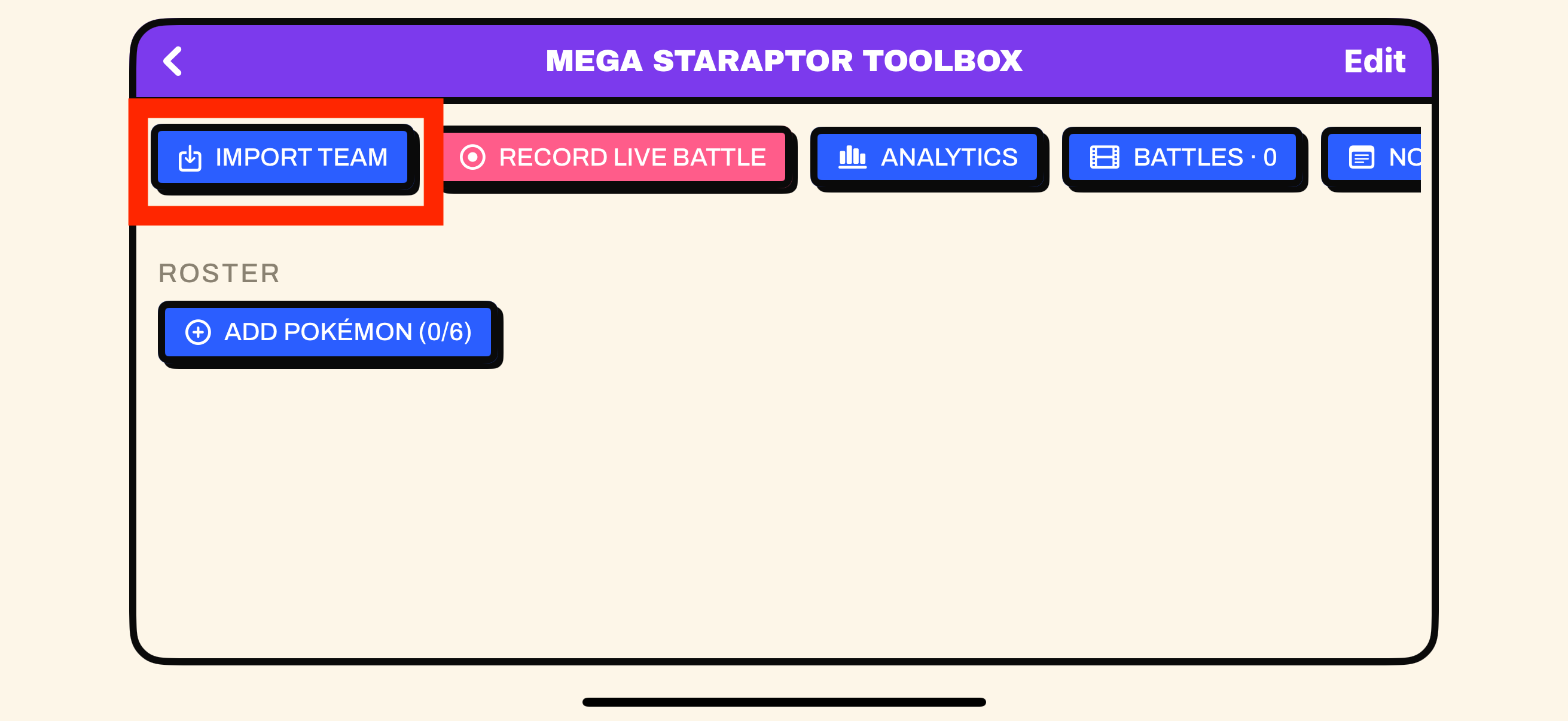
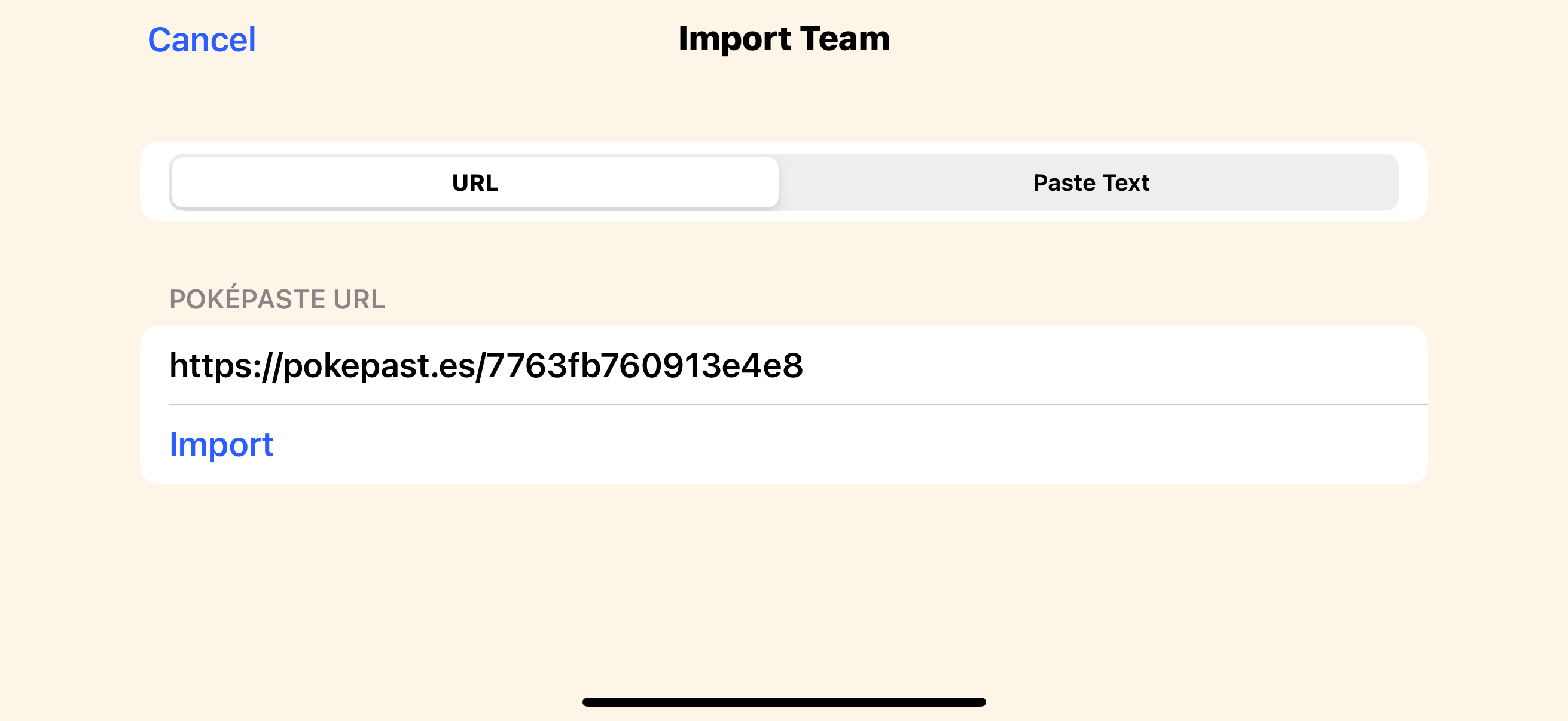
On the team screen, tap Import Team and paste a PokéPaste link (or your raw Showdown export text). The app parses all six Pokémon: species, moves, item, ability, and EVs, and fills the roster instantly.
Prefer to build by hand? Tap Add Pokémon and add each Pokémon and pick species, moves, item and ability from searchable lists. Champions uses a 66-point EV budget, and the steppers hold you to it.
Your first battle, the easy way
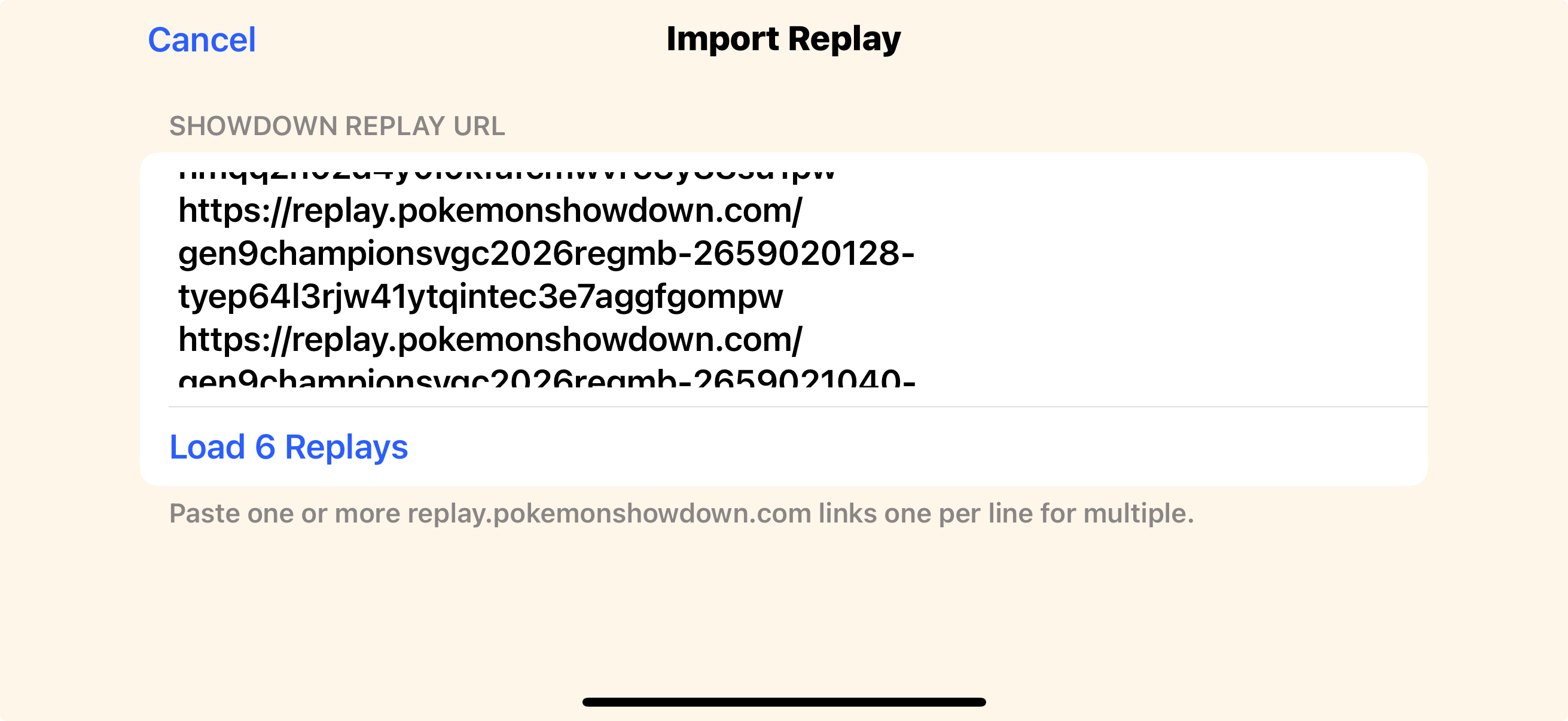
The fastest way to see the app light up: import a Showdown replay. Tap Import Replay , paste a replay.pokemonshowdown.com link, and confirm which side is you (it auto-detects from your roster). Done. No camera, no Switch needed.
Got a whole ladder session saved? Paste several links at once and import them in one batch.
- Reads leads, switches, moves, megas, faints, and the result
- Skips duplicates and warns if a replay's team isn't your roster
Step 4 · Record live from your Switch
This is why you are here: point your phone at the Switch and it reads the battle text as you play. It takes four quick beats, and the second one, calibration, is the only part worth slowing down for.
record
Pick a profile
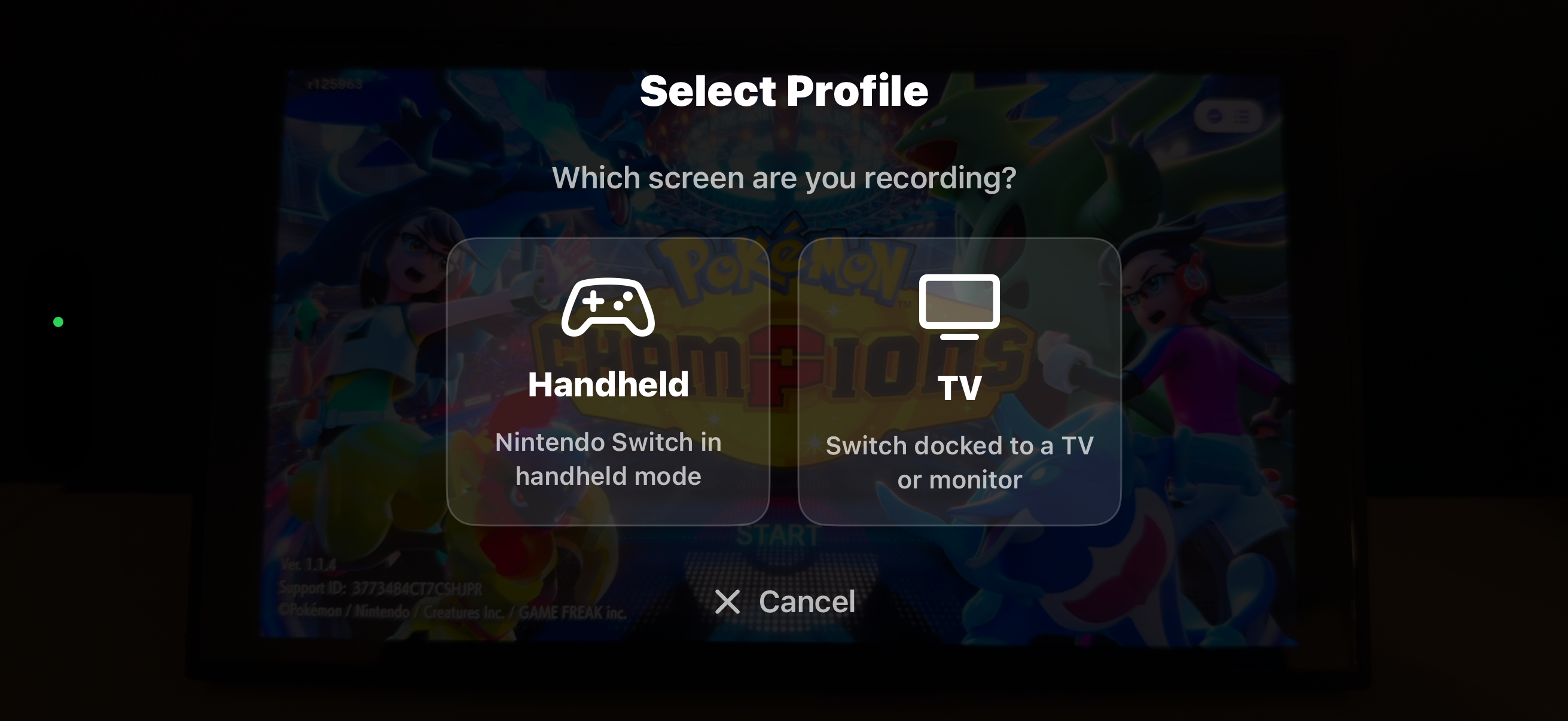
Tap Record, make sure the phone is steady,then choose Handheld (phone close to a handheld Switch) or TV (aimed at a TV/monitor). Each keeps its own saved calibration.
Calibrate
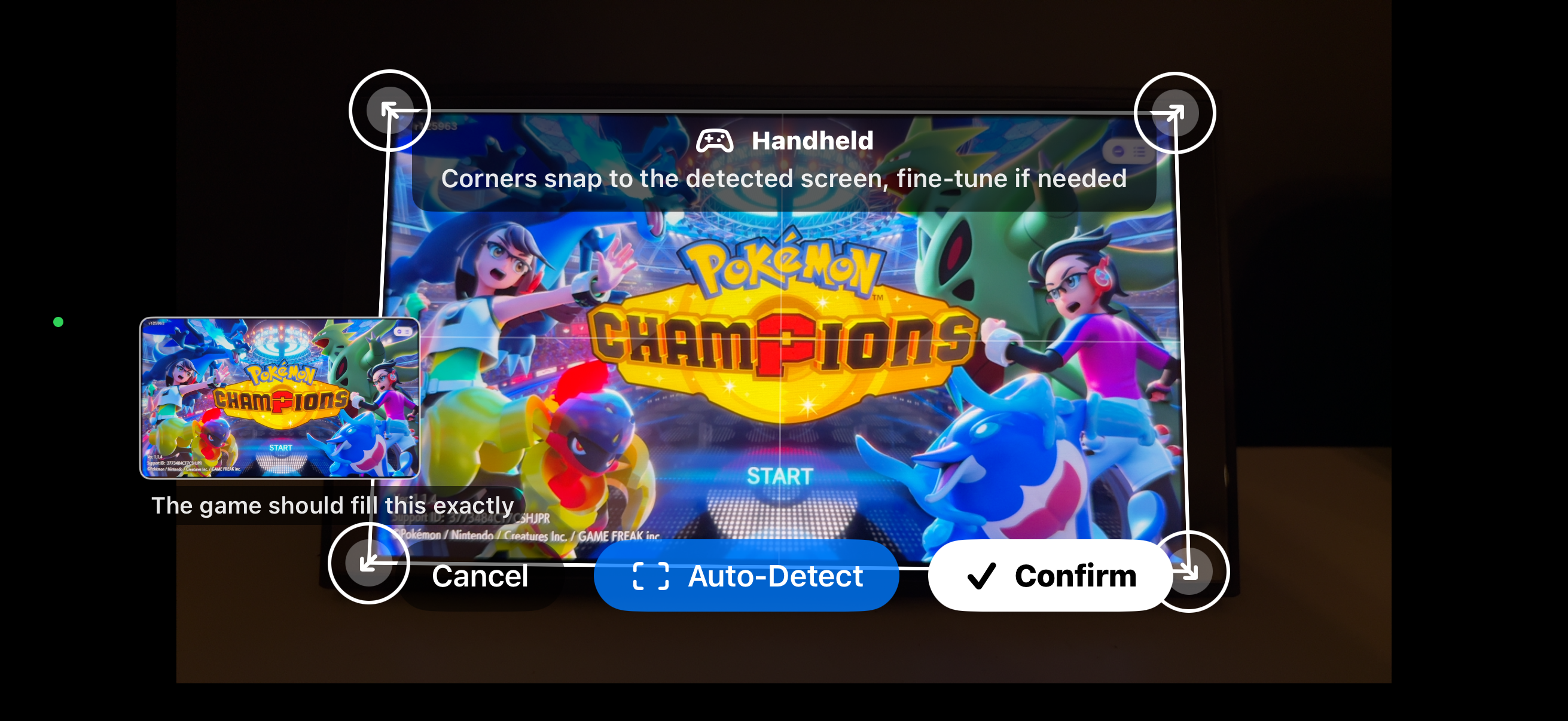
The app auto-snaps to the detected screen. If it doesn't get the whole screen drag the four corners to outline the Switch screen; nudge to fine-tune.
Record
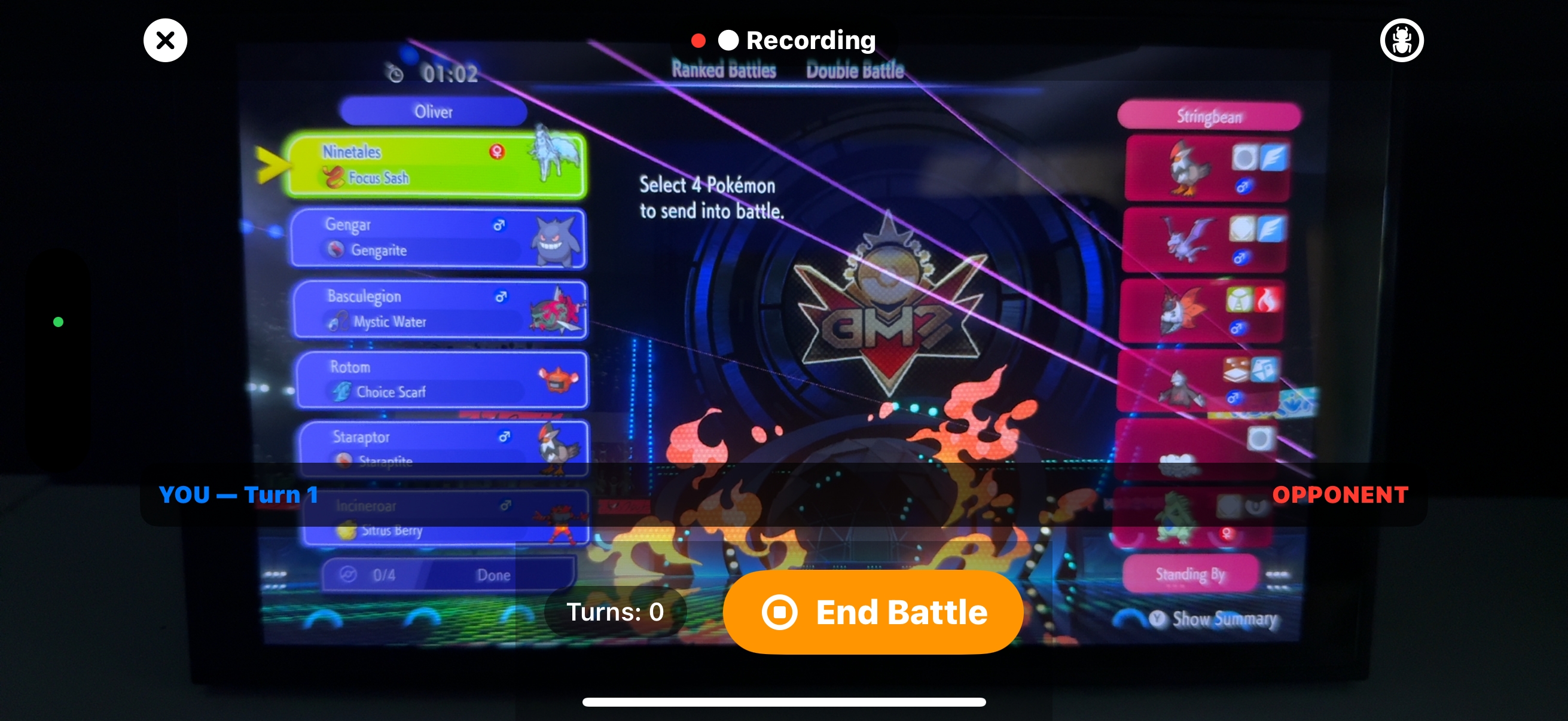
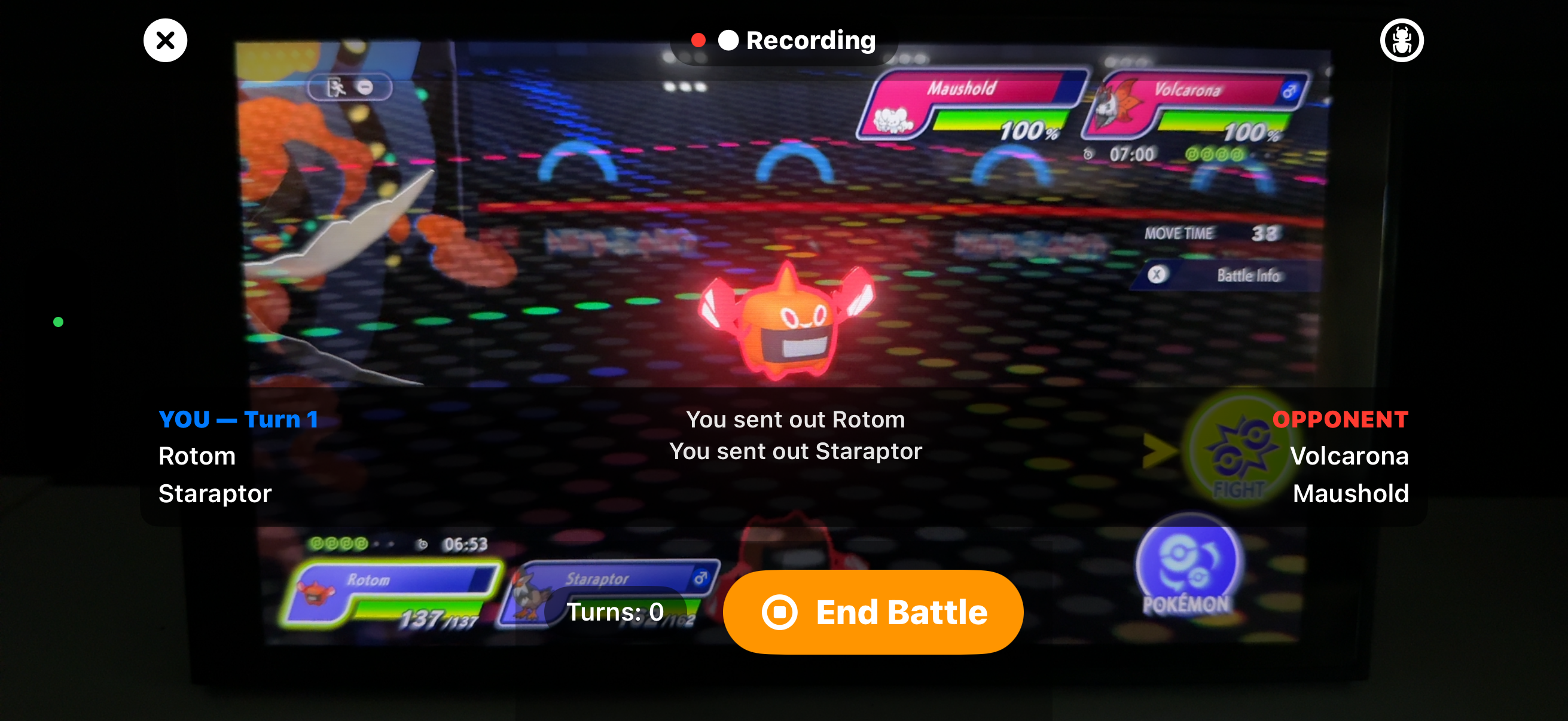
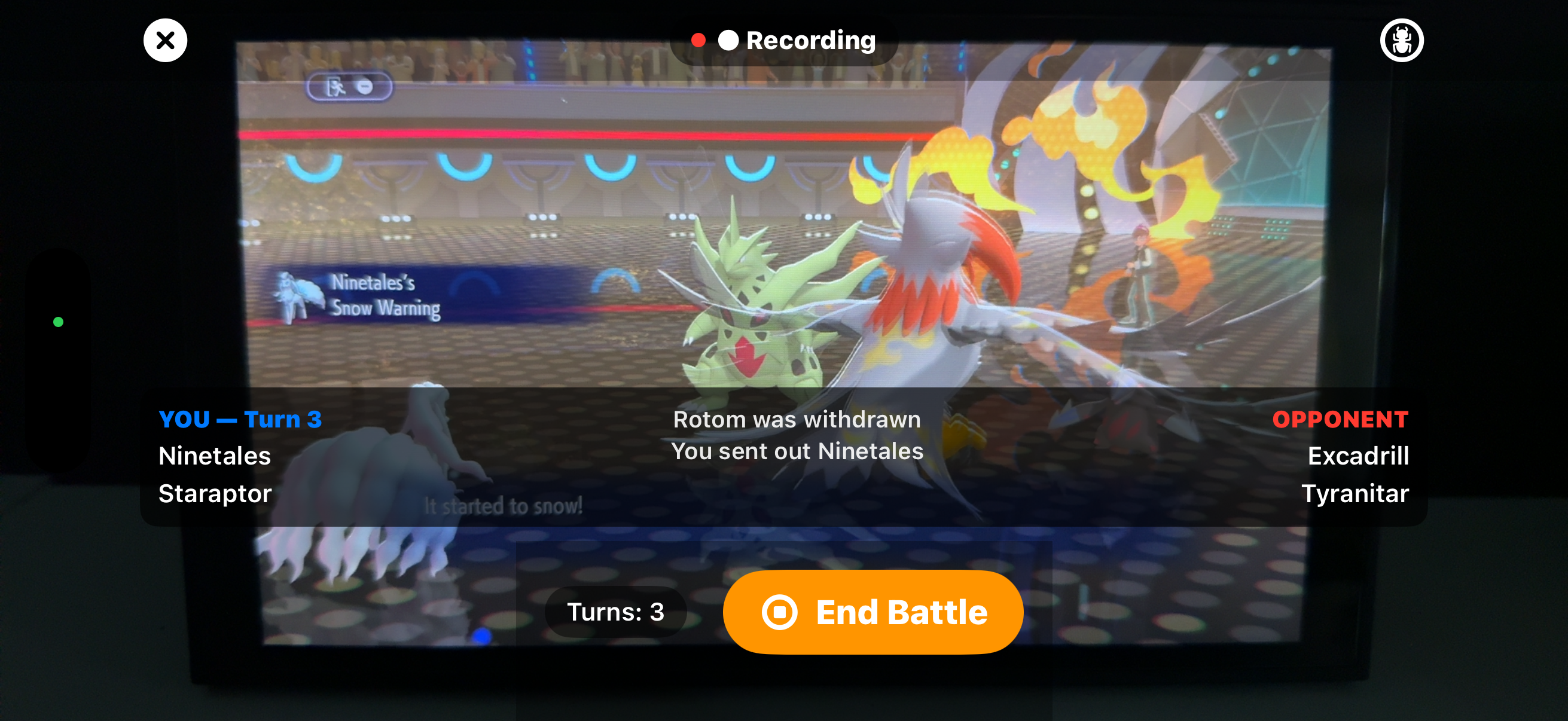
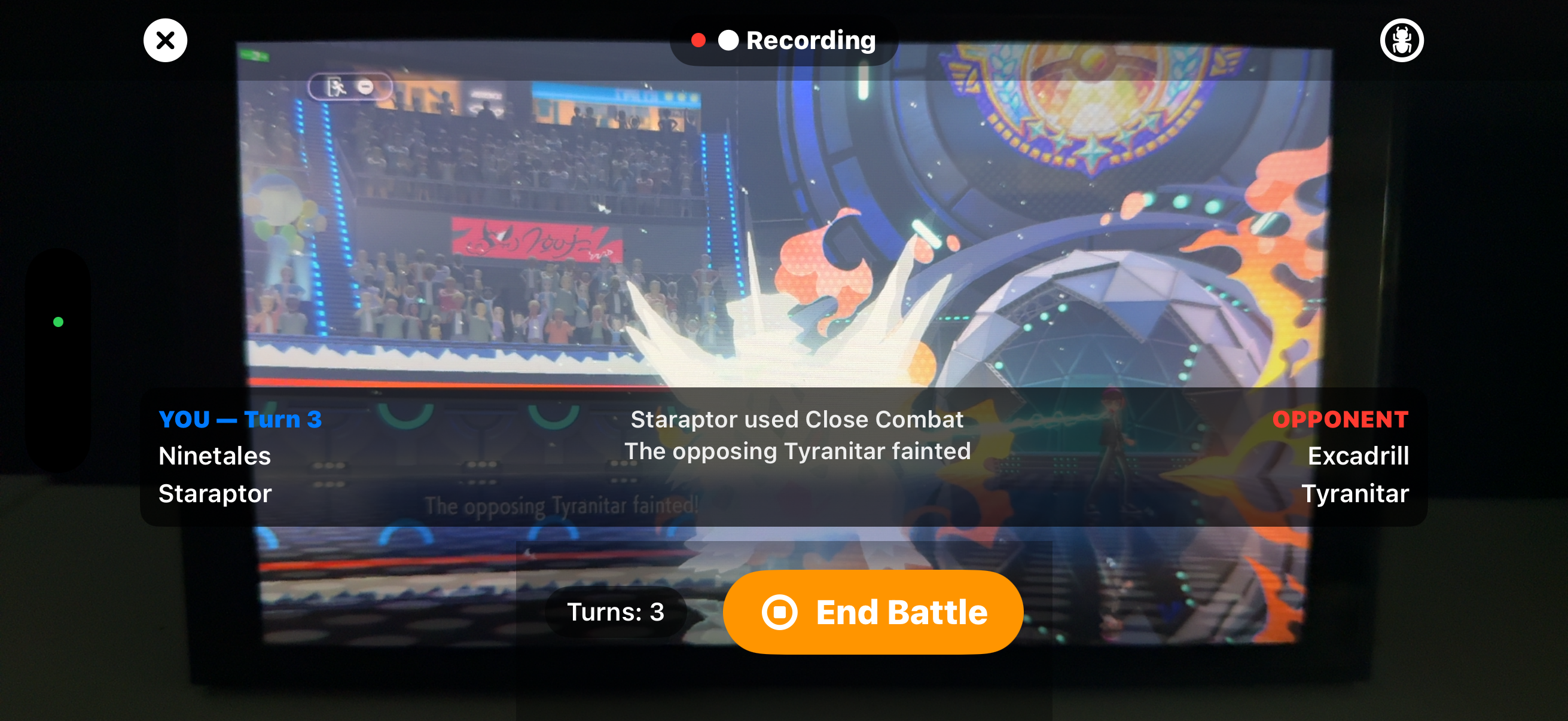
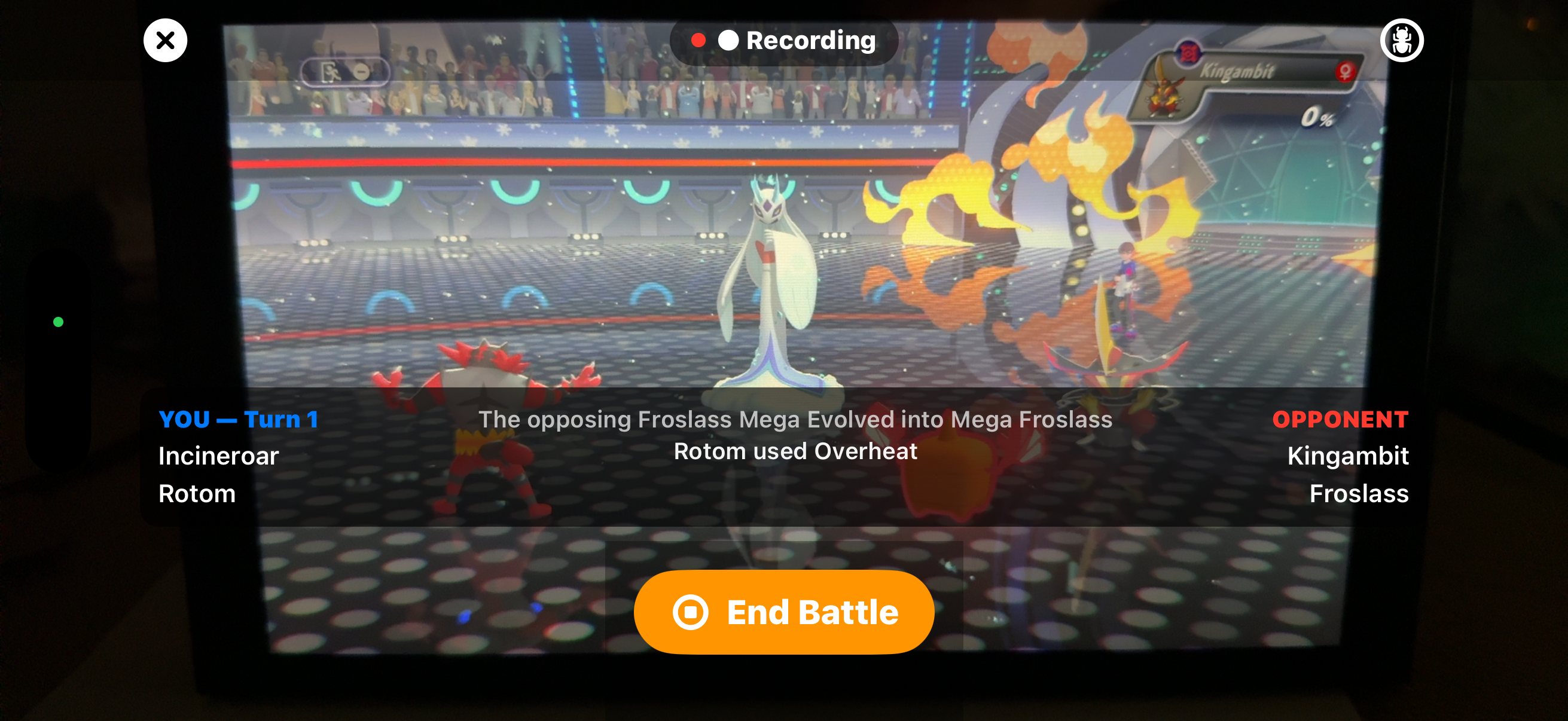
Tap record, lock in and play. Let the app do the rest of the work it tracks the battle live.
Finish up
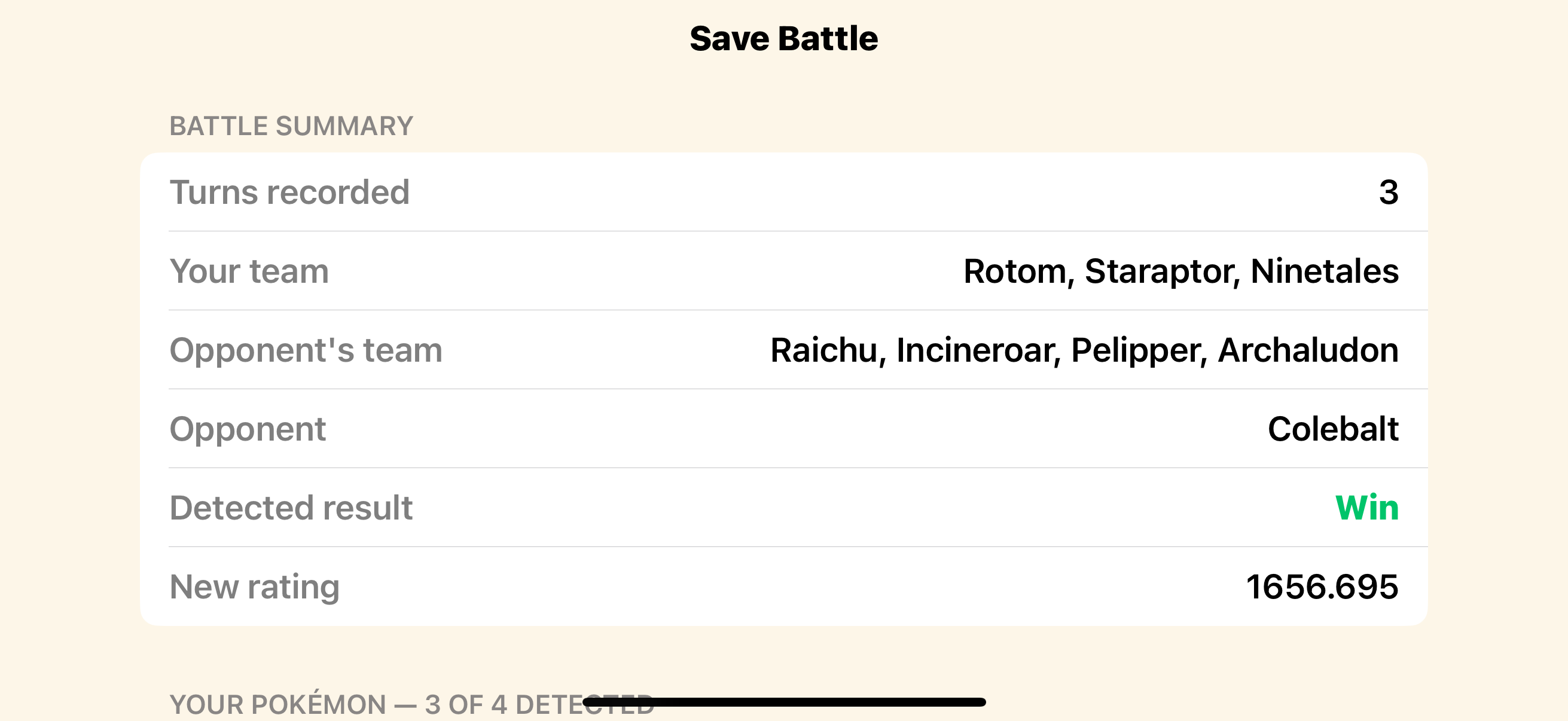
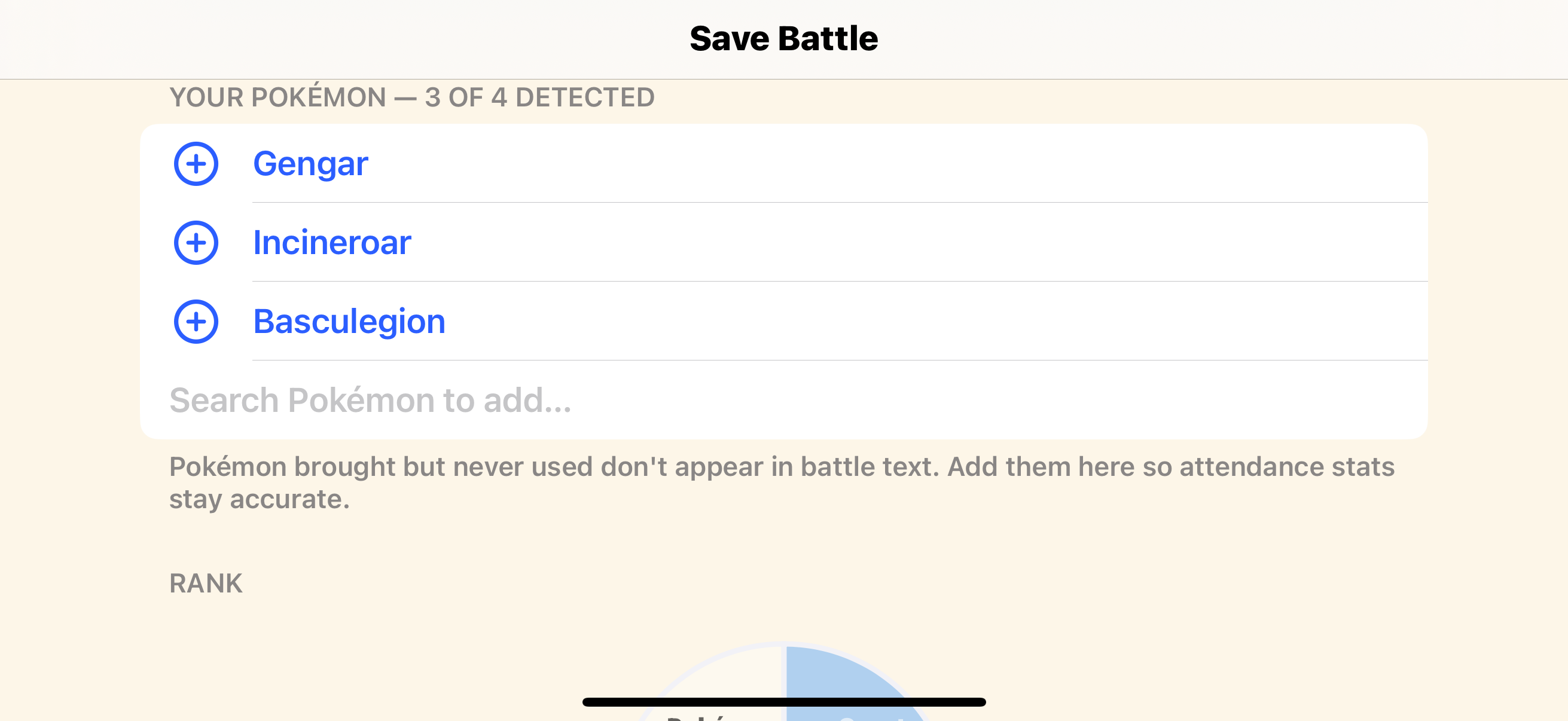
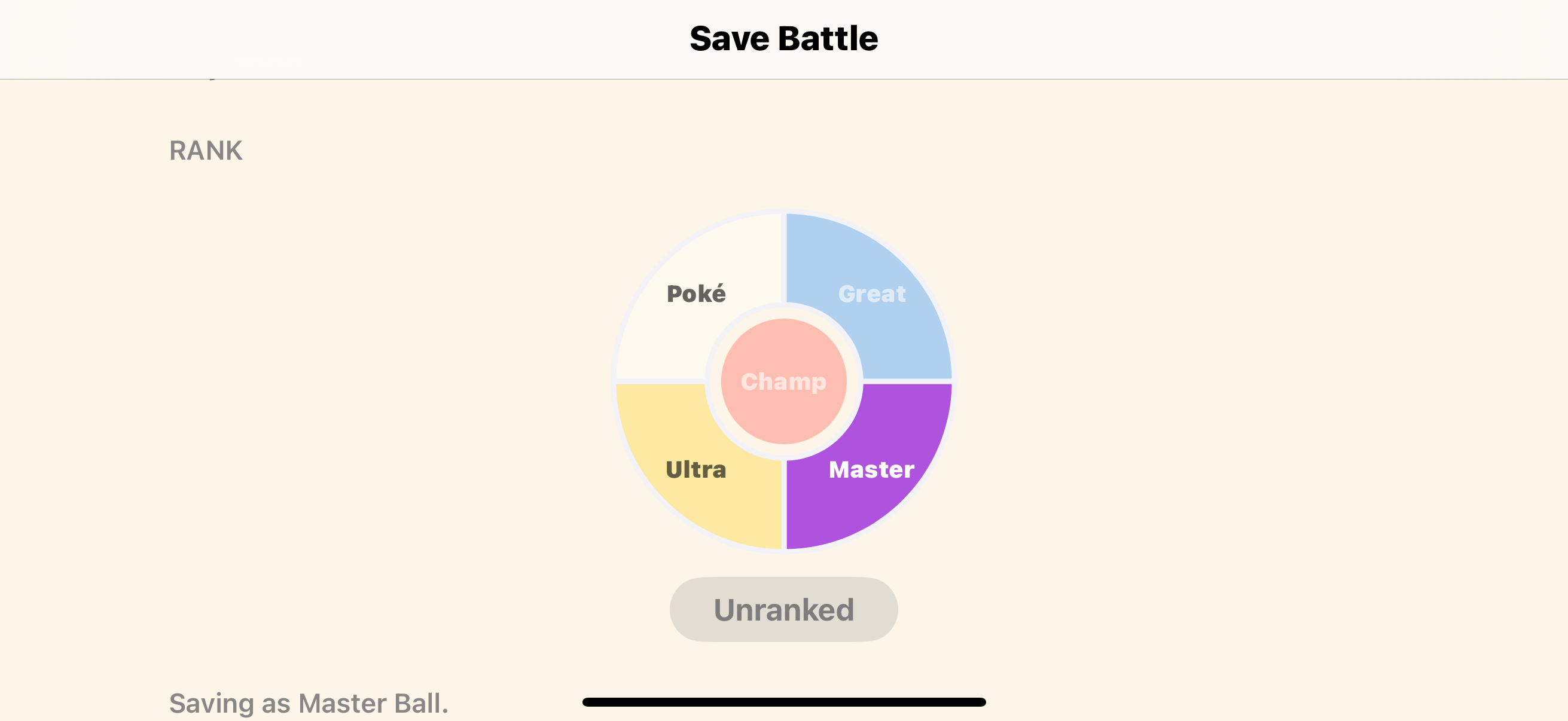
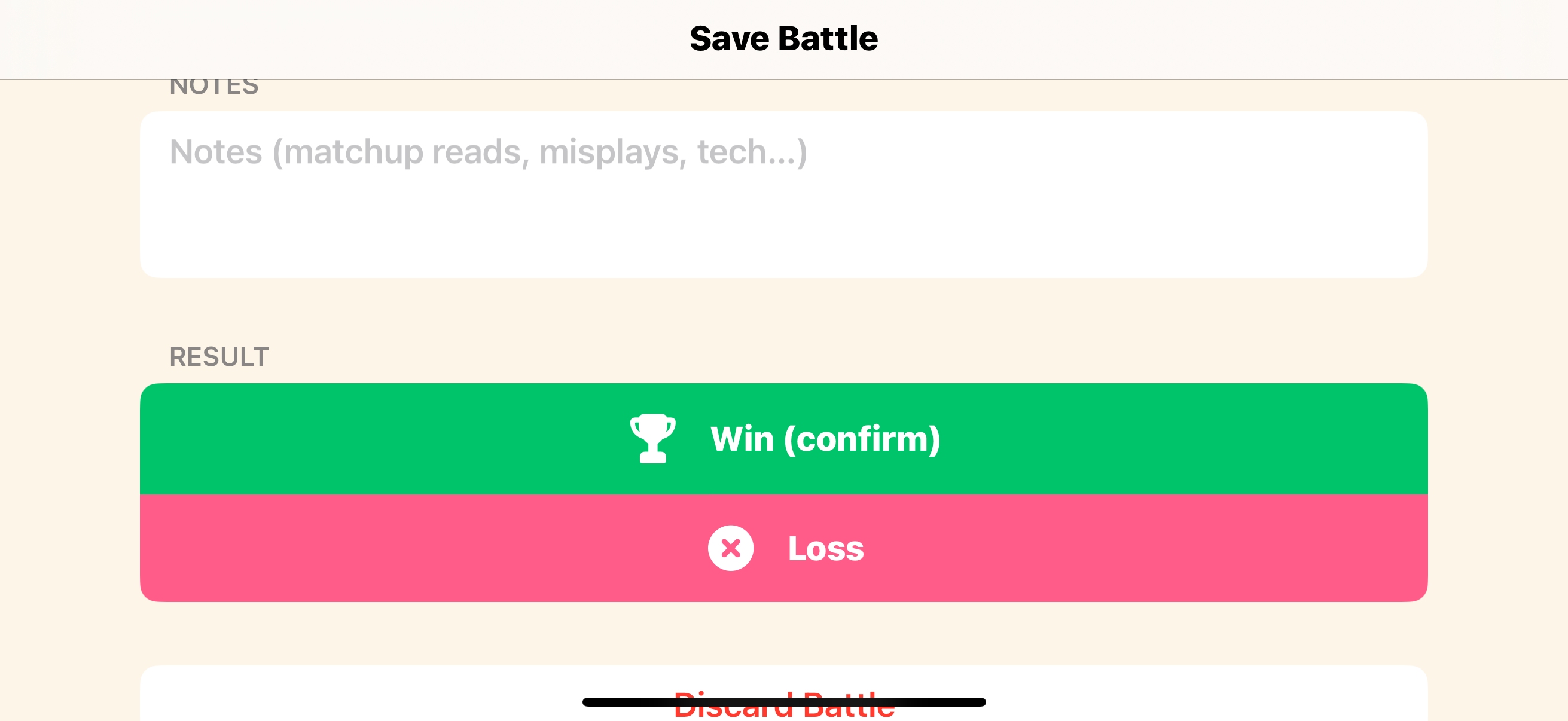
Tap End Battle (or it auto-finishes on the results screen if your are a rank with ELO). Set Win/Loss and your rank, add any Pokémon it didn't see take the field, and Save.
Outline the screen, not the room
Calibration tells the app exactly where the Switch screen sits in the camera frame, so it reads the battle text from the right place and ignores everything around it. Drag each corner handle right to the edge of the game screen, into the corners, past the bezel.
Watch the little rectified preview as you go. When the game fills that preview edge-to-edge with no black border, you're calibrated. If you see a strip of bezel or background inside it, pull that corner in tighter.
- Do it once per setup. Handheld and TV each remember their own
- Move the phone closer until the screen fills the camera before you start
- Re-calibrate if you change your seat, mount, or distance
Step 5 · Read your stats
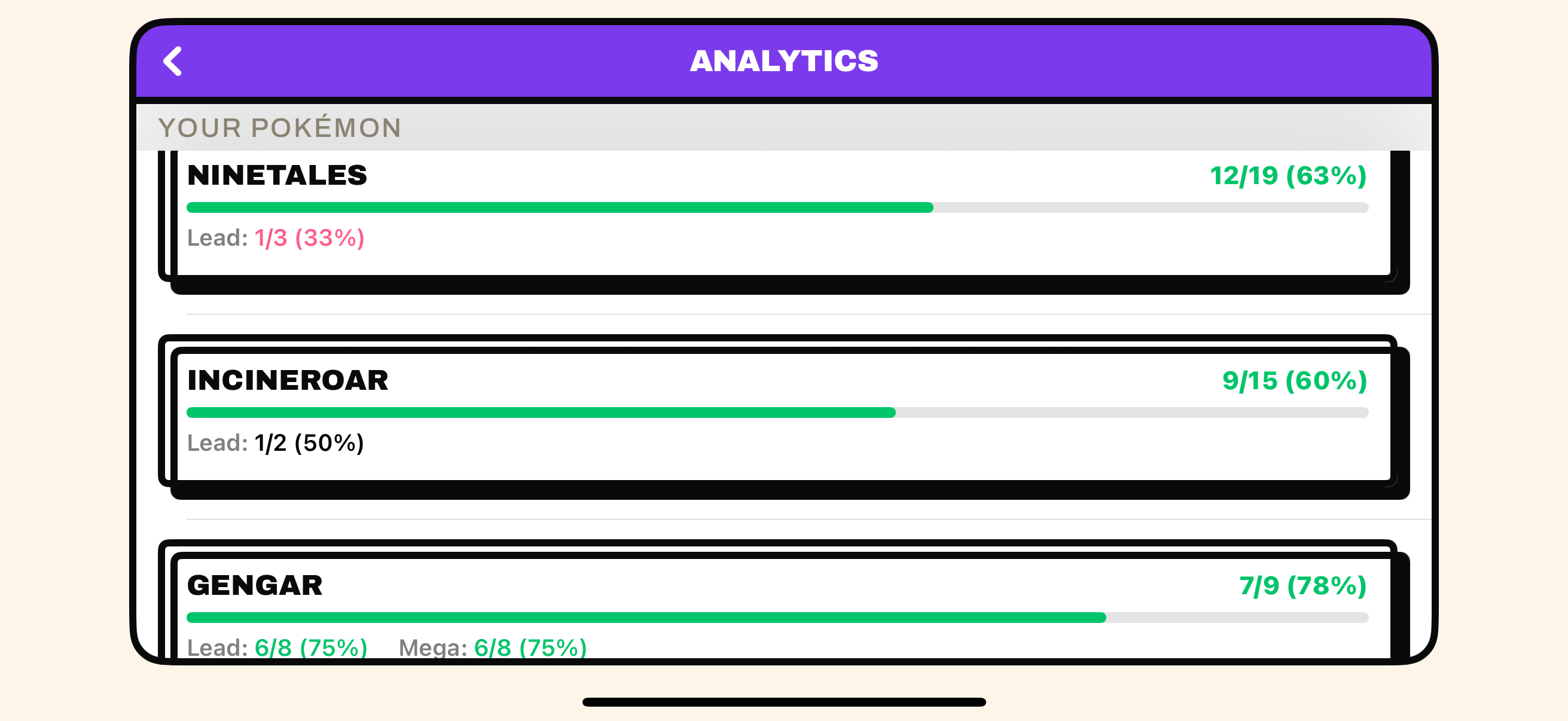
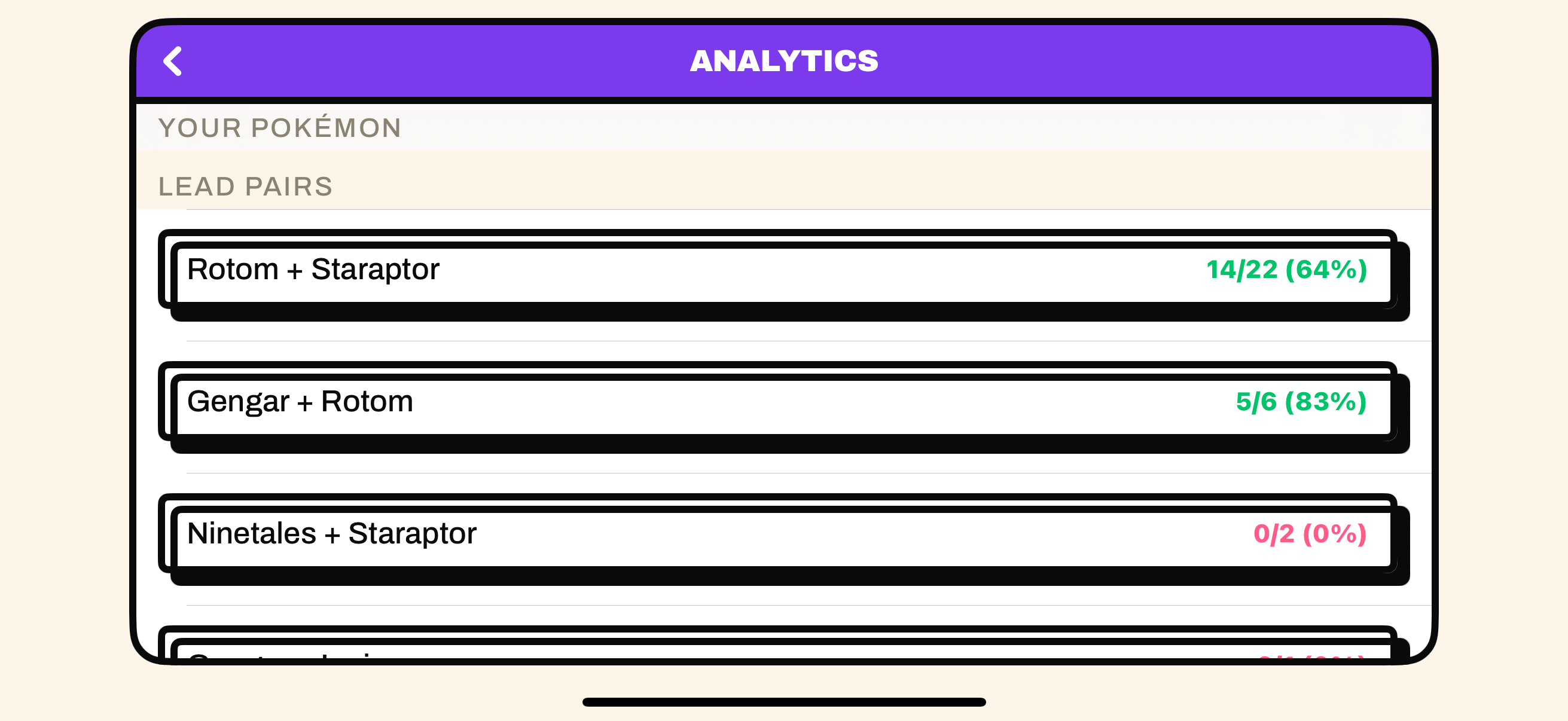
Once a battle or two is in, open Analytics from the team screen. Three tabs, each filterable by source (Champions / Showdown), rank and team versioning. Here's what each one shows, top to bottom.
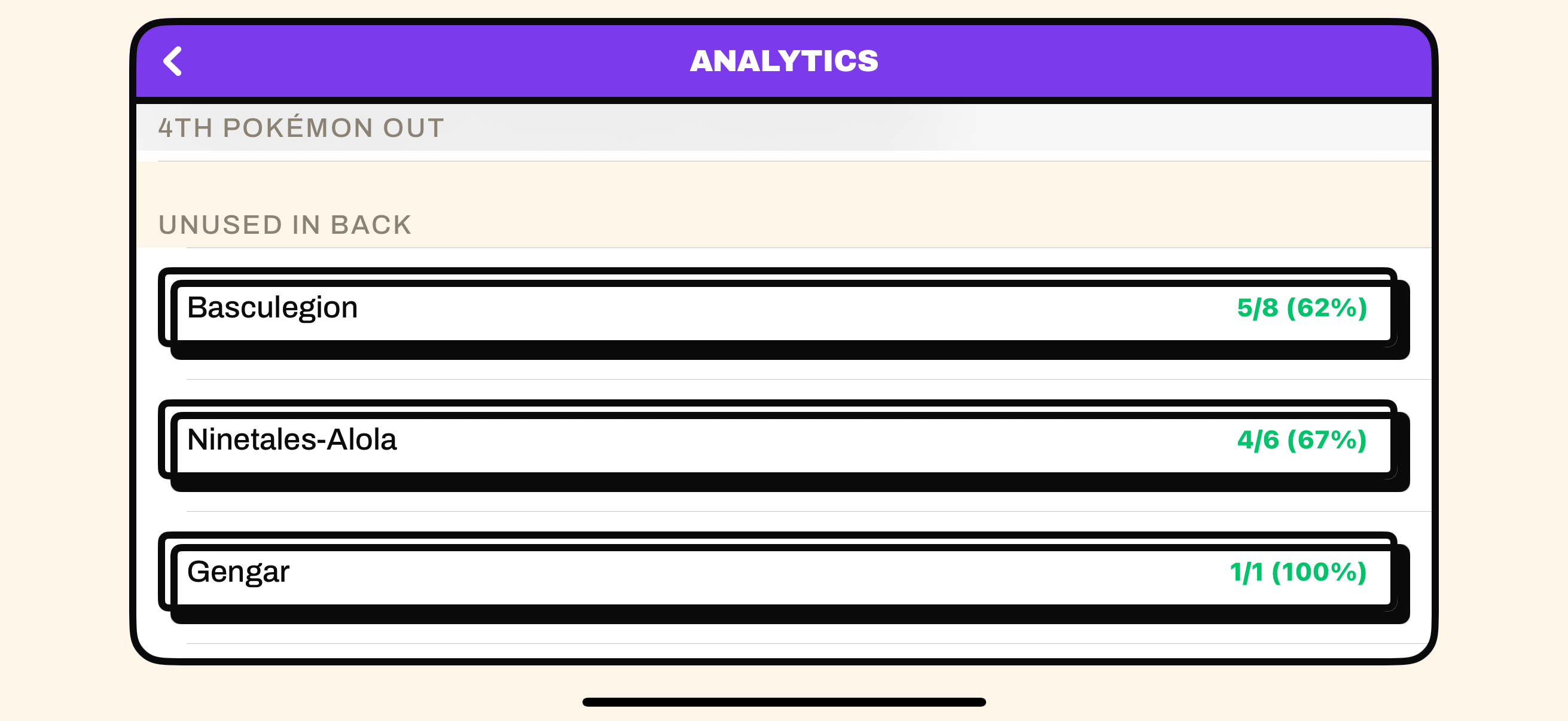
UsageOverall win rate, per-Pokémon win %, lead and mega win rates, your best lead pairs, and who you tend to send out third and fourth.
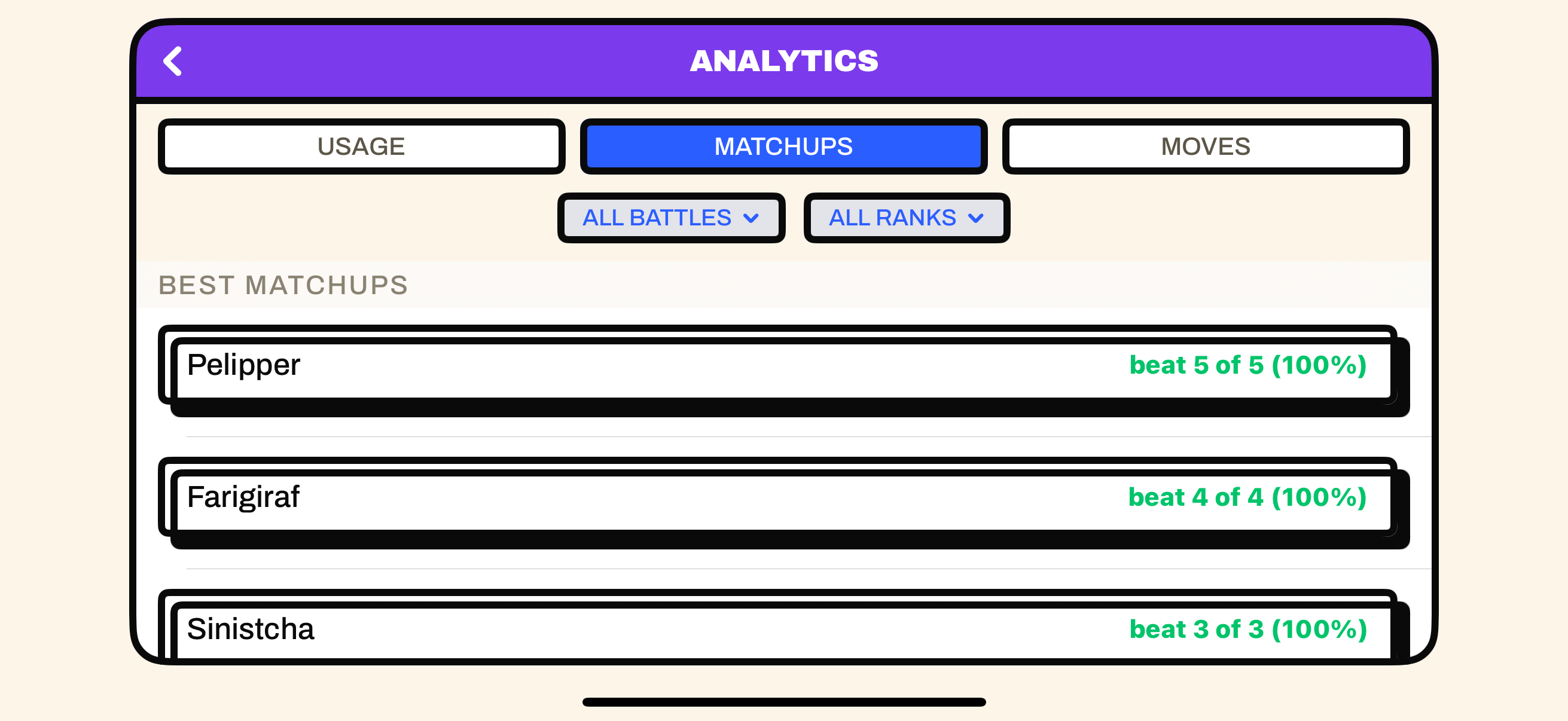
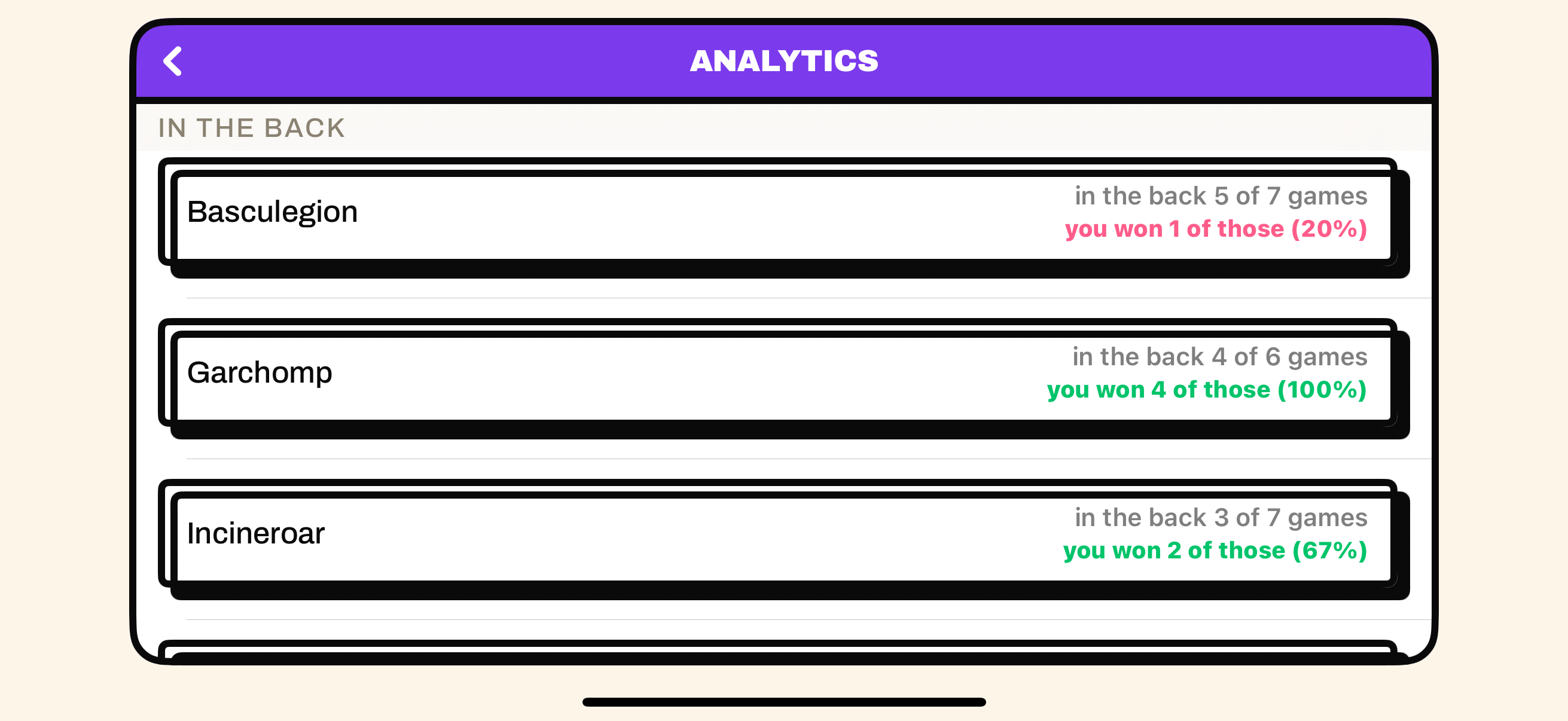
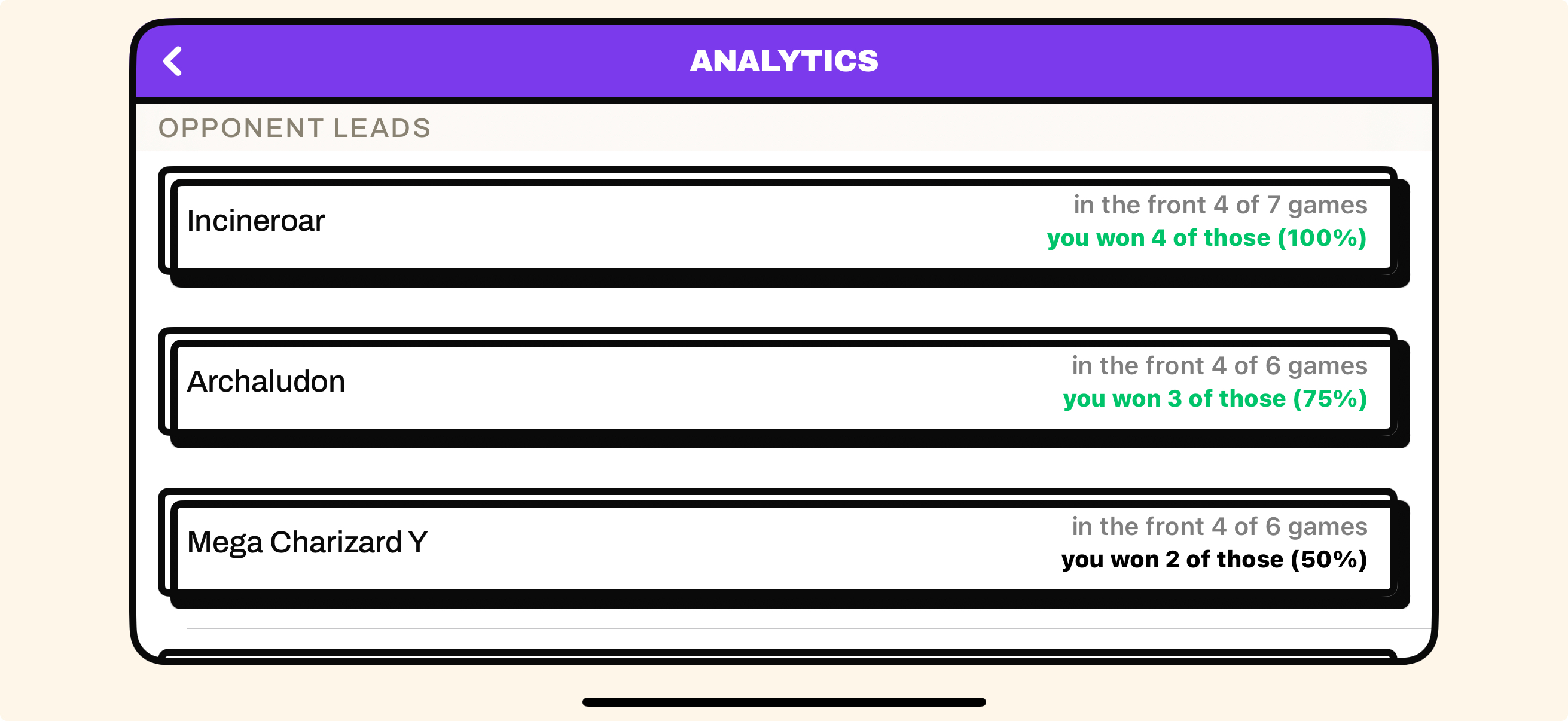
MatchupsYour record against each opponent species, plus what they tend to lead and what they keep in the back.
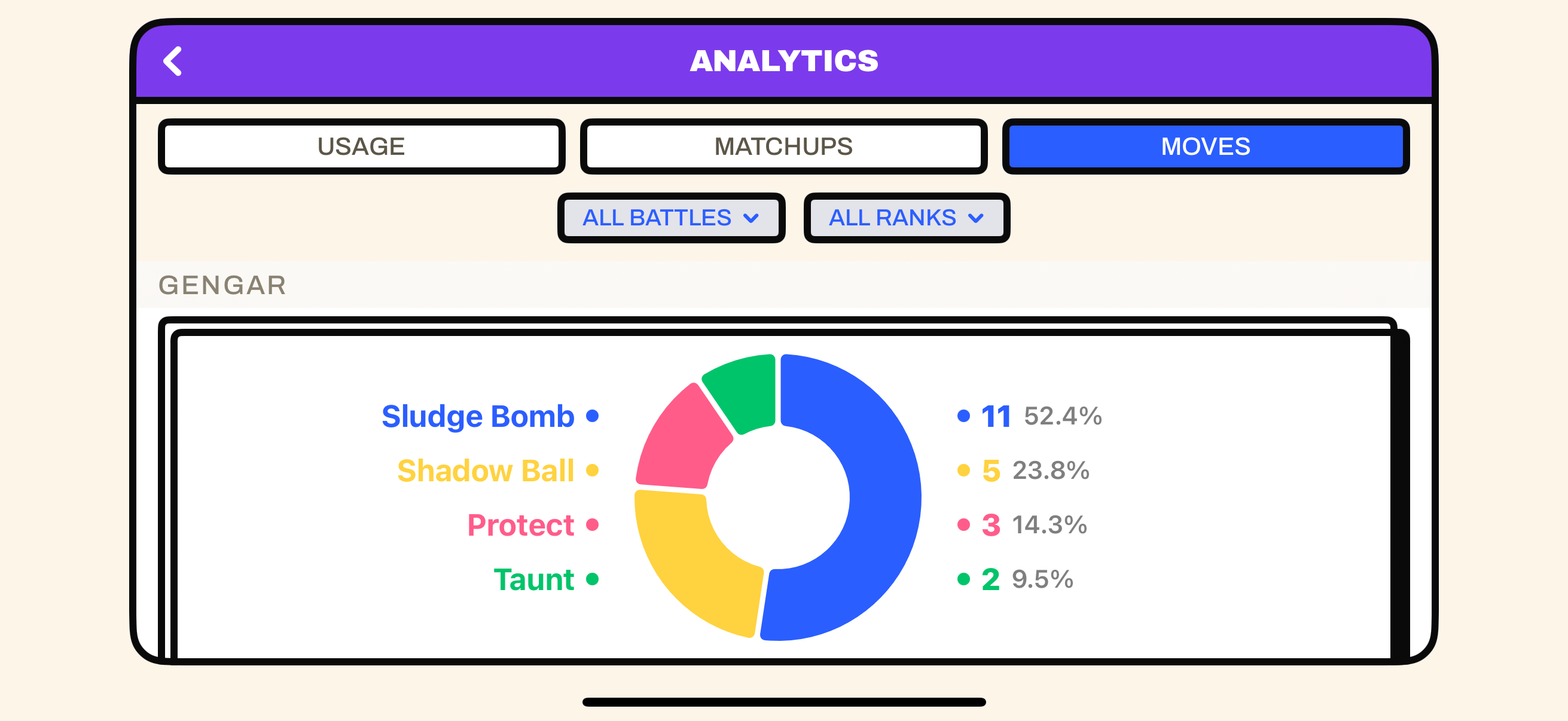
MovesA per-Pokémon breakdown of what each of your mons actually clicks, drawn as donut charts.
Step 6 · Edit and version your team
Teams change as the meta does. When you tweak a build, the app keeps a dated history of it, so your stats always know which version each battle was played on.
Tweak it, then save a version
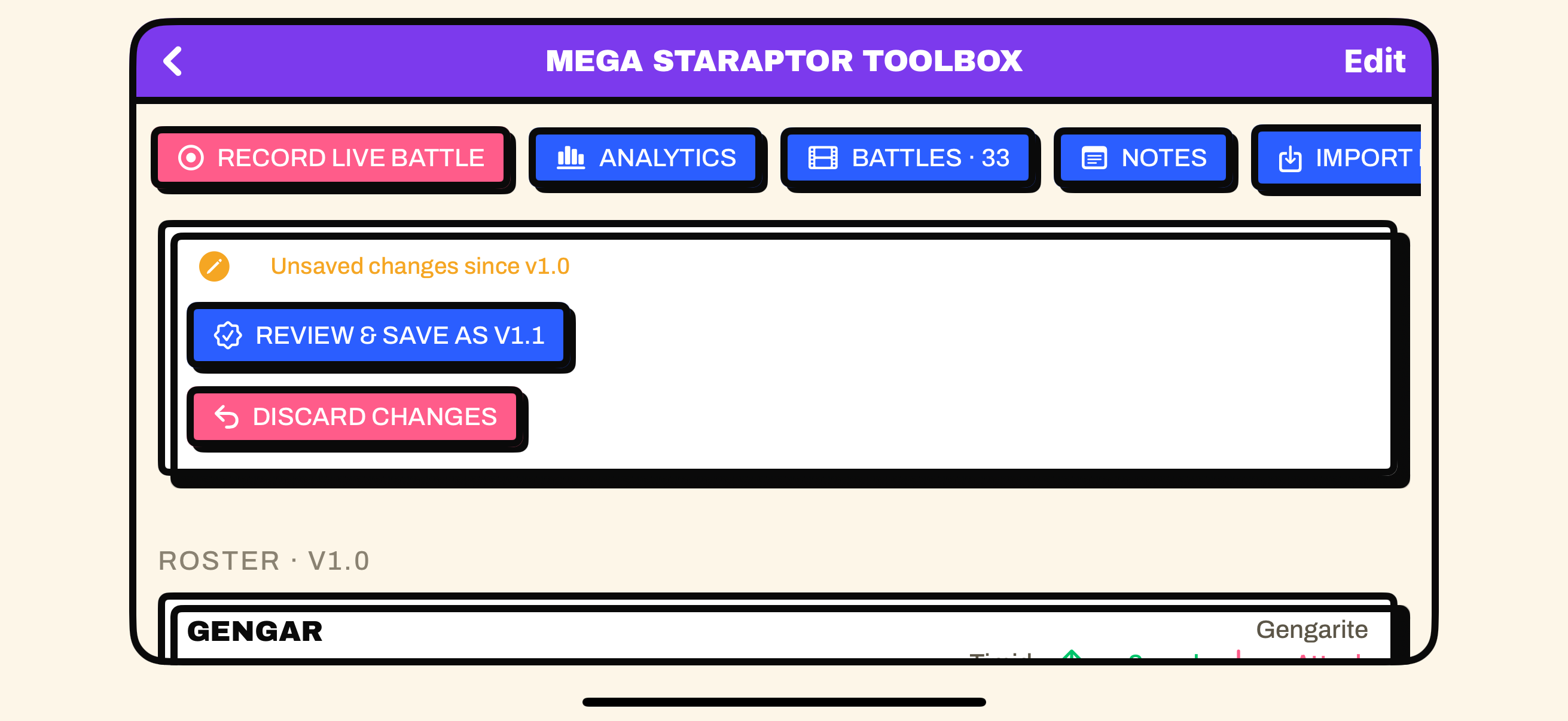
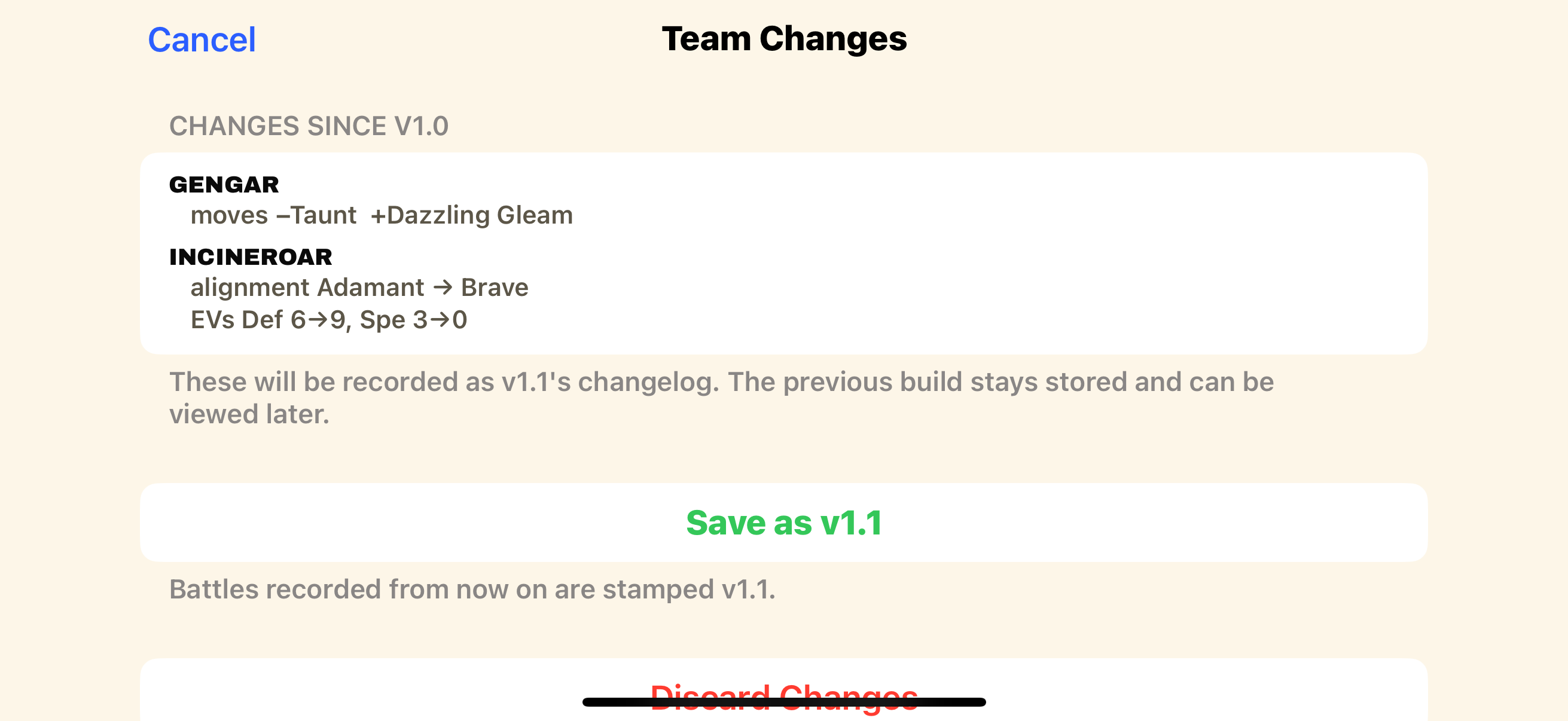
Edit the kit (a move, an item, an EV spread, an ability, a stat alignment) and the team screen shows an unsaved changes banner. Tap it and the app writes a new version like v1.1 with an auto-generated changelog of exactly what changed.
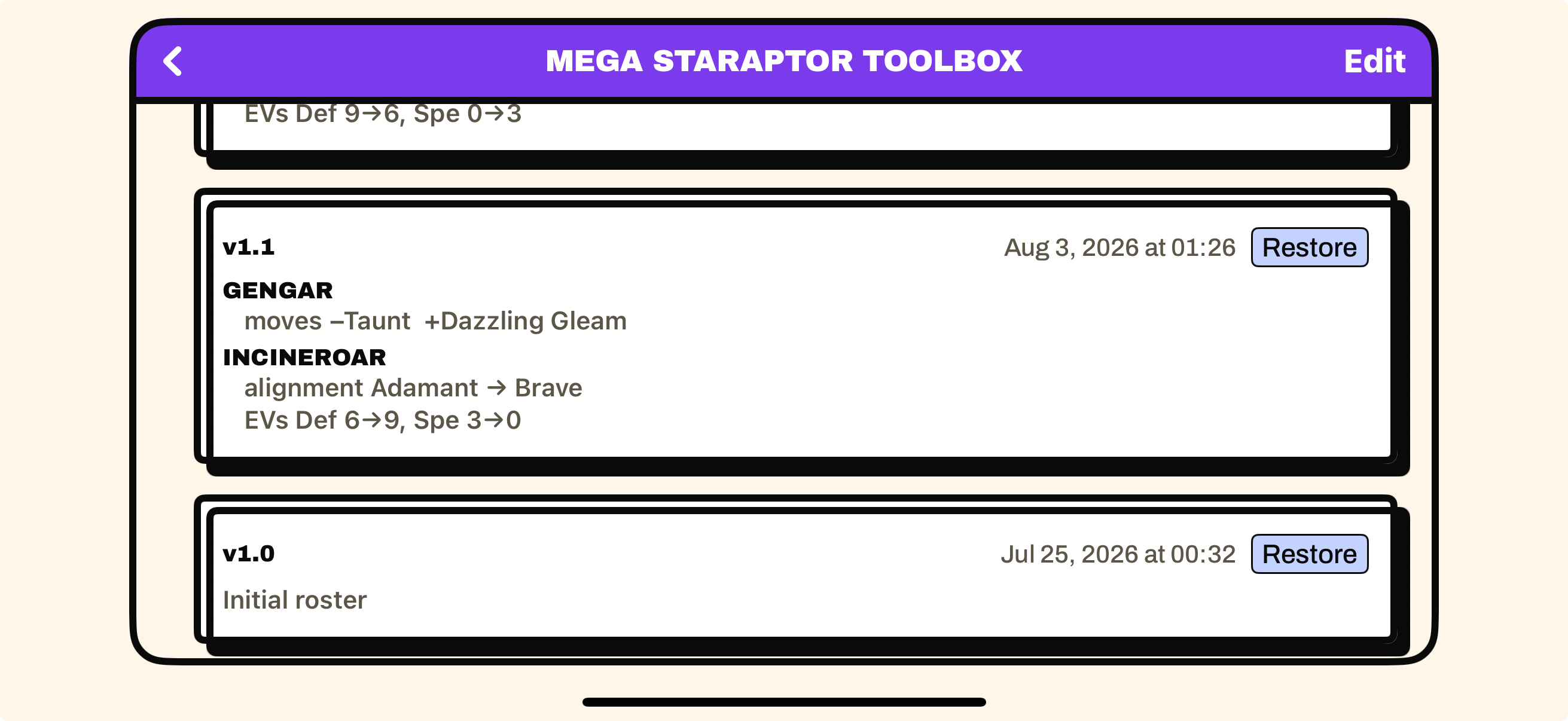
Every battle you record is stamped with the version it was played on, so your analytics can tell a v1.0 game from a v1.2 game. Open the Team Log under your team at the bottom to browse every version with its changelog and date, and restore an older build in one tap. Restoring a new build will treat it like a new version of the team Restoring V1.2 when you are on V1.3 will make V1.4
- Versioned: moves, items, EVs, abilities, and stat alignment
- Not versioned: nicknames and notes, so tweak those freely
- Recording or importing with unsaved changes asks you to save a version first
A new species means a new team
Change your Pokemon without losing your history. If you update your species, the app will spin the edited roster in a brand new team(named "… 2.0", yours to rename). This leaves the orignial team, its history and its analytics exactly as it was.
That keeps each species build's stats clean and separate, instead of blending two different teams into one set of numbers.
FAQ
Do I need to turn off nicknames?
For live capture, yes. VGC Battle Lens identifies your Pokémon by reading the species name having nicknames will effect your battle data negativley.
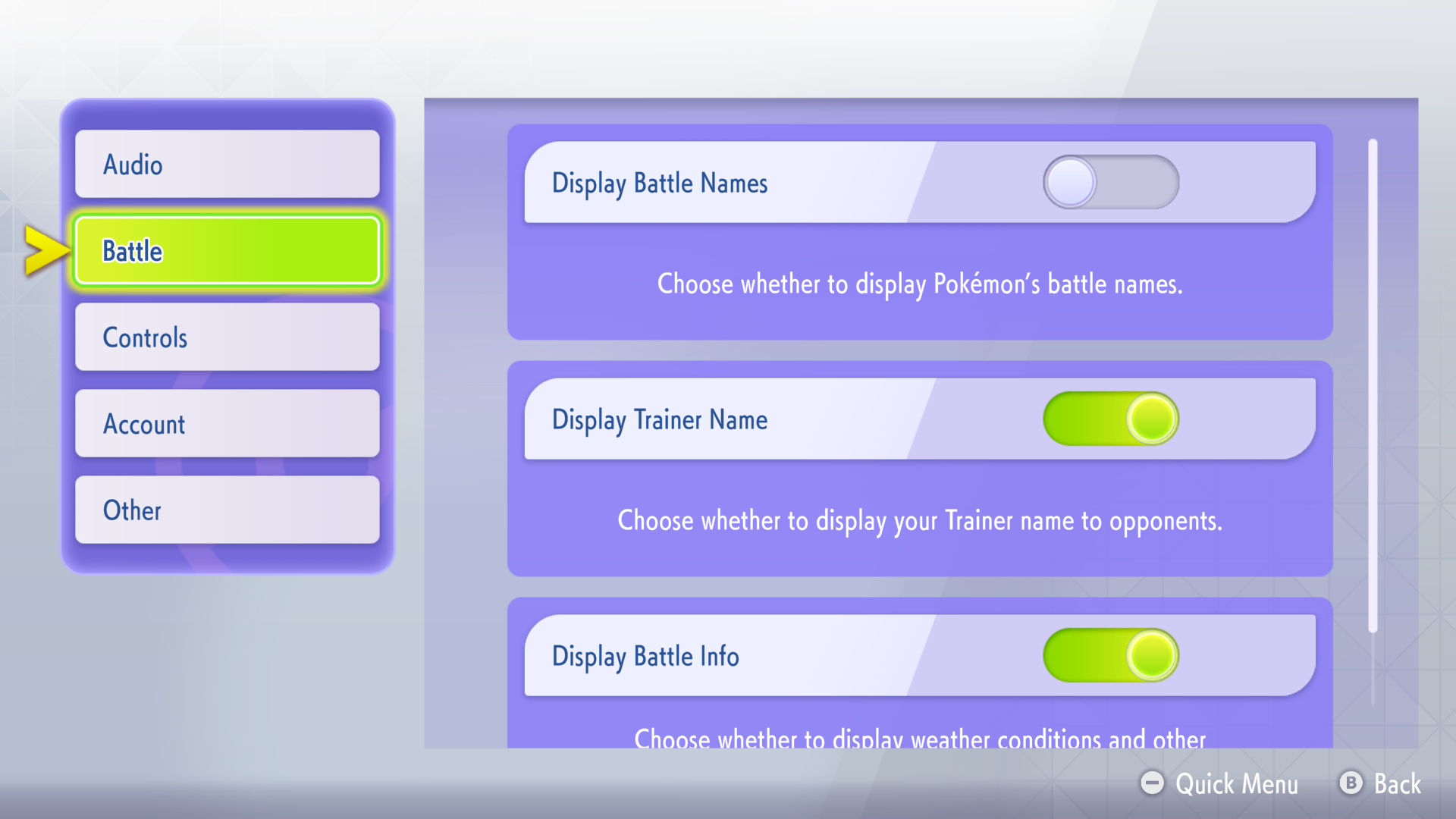
Before you record, make sure your game is using default species names rather than nicknames. To do this click Submenu,scroll down and click settings. Now go to Battle and make sure the Display Battle Name option matches the screenshot below.
Will I get my account banned using this?
No! Since you are just using your phone and its pointing at your switch screen there is no tampering with Nintendo’s hardware or software. Think of it as someone who is looking over your shoulder and watching you play games and taking notes. The app just makes it convent and streamlines that whole process. I have been using the app with my own accounts for months while testing the app and my accounts are still in good standing and working order.
However for in person events it is not recommended to use it. For regionals other electronic devices are not allowed on the table, so please do not use it at large events since you might get in trouble even for just having your mobile phone out.
Do I need my Switch to use the app?
Only for live capture. You can get full analytics without ever pointing a camera at anything by importing Showdown replays. Live capture is there for when you want to track your actual Champions games off the console.
What actually is calibration, and why do I do it?
It marks where the Switch screen is inside the camera view, so the app reads text from the game and not from your desk, the TV bezel, or a stream overlay. You do it once per setup, and each profile (Handheld / TV) remembers its own outline. When the little preview shows the game edge-to-edge with no black border, it's right.
Handheld vs TV, which do I pick?
Whatever gives you the best setup that you are comfortable with. Handheld is for using the Switch when you're playing in handheld mode; TV is for aiming it at a docked Switch on a TV or monitor. They're just two saved calibrations, so set up whichever you use, or both.
Why is everything locked to landscape?
Champions is played in landscape, and the camera framing, calibration, and screen regions all assume that orientation. Keeping the whole app landscape keeps capture consistent.
I saved a battle under the wrong team. Can I fix it?
Yes. In a team's battle list, swipe a battle and choose Move to send it to another team. Battles store species by name, not roster links, so moving one is safe. It had different Pokemon in it then there will be a prompt
Do I need a tripod to use this app?
No you don't really need any additional hardware to use the app but it does help. Cheap phone tripods from a dollar store can do the trick, I am also in the process of 3D printing holders for phones and the Switch Lite once tested and I know they work they will be available for you to download and use. If that's not your cup of tea then everyday household items can work just as well. (Photos coming soon!).
Can I customise my experience?
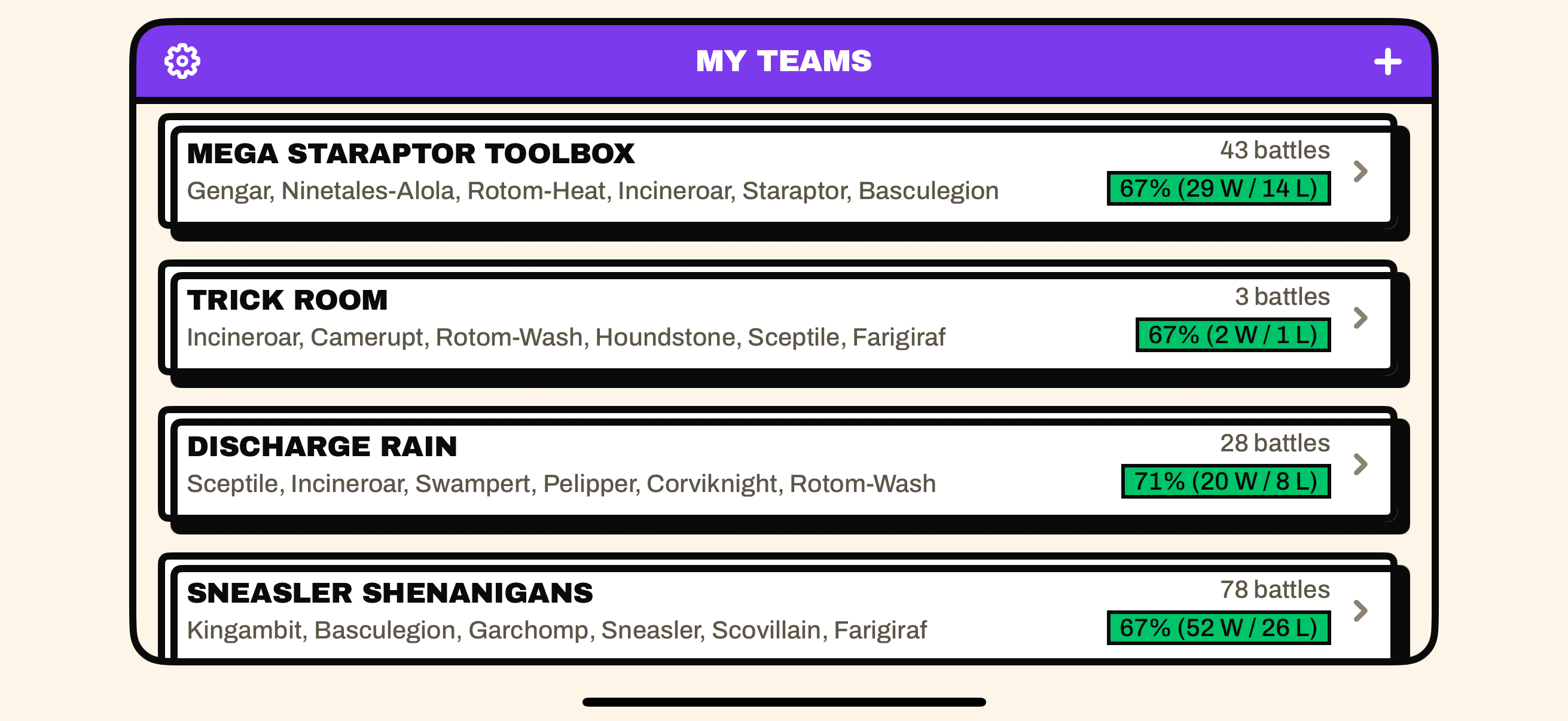
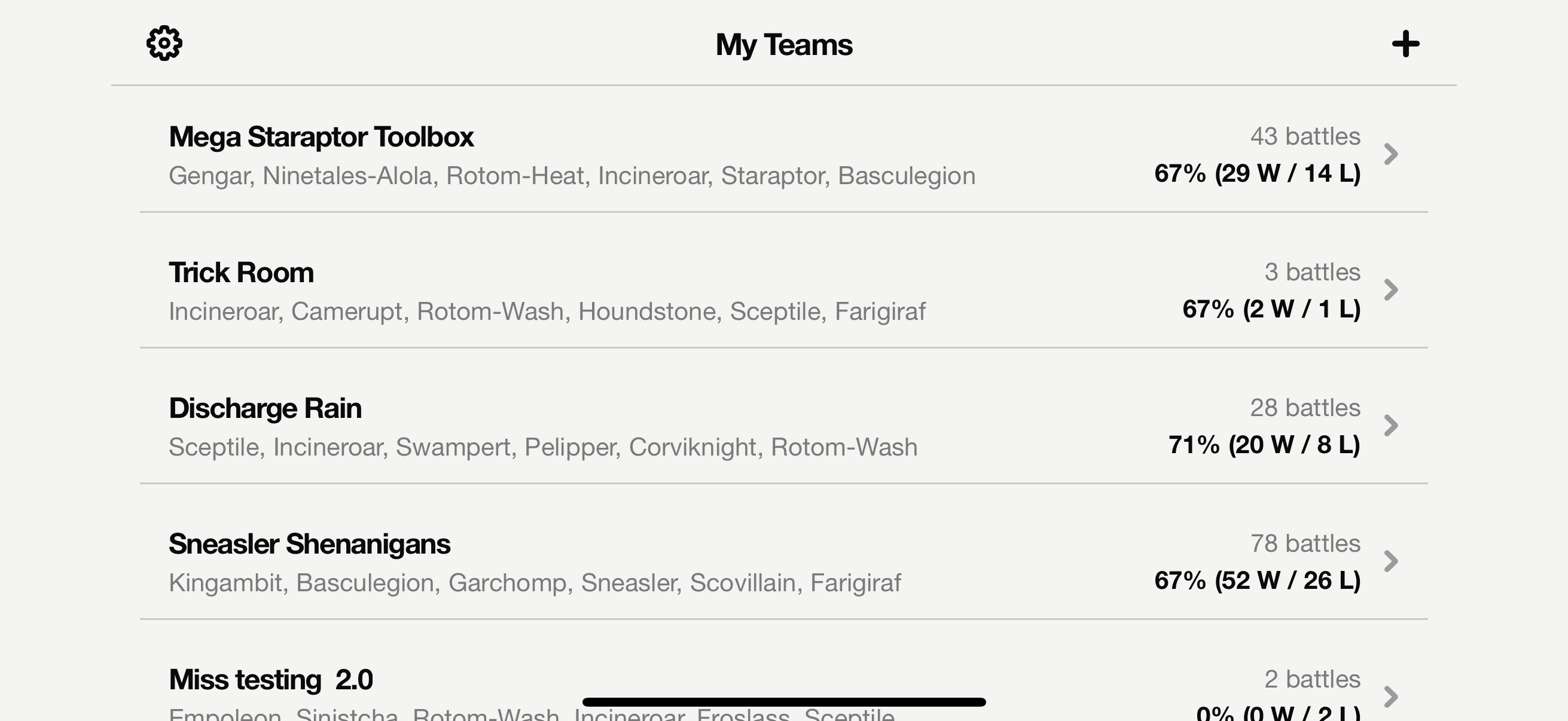
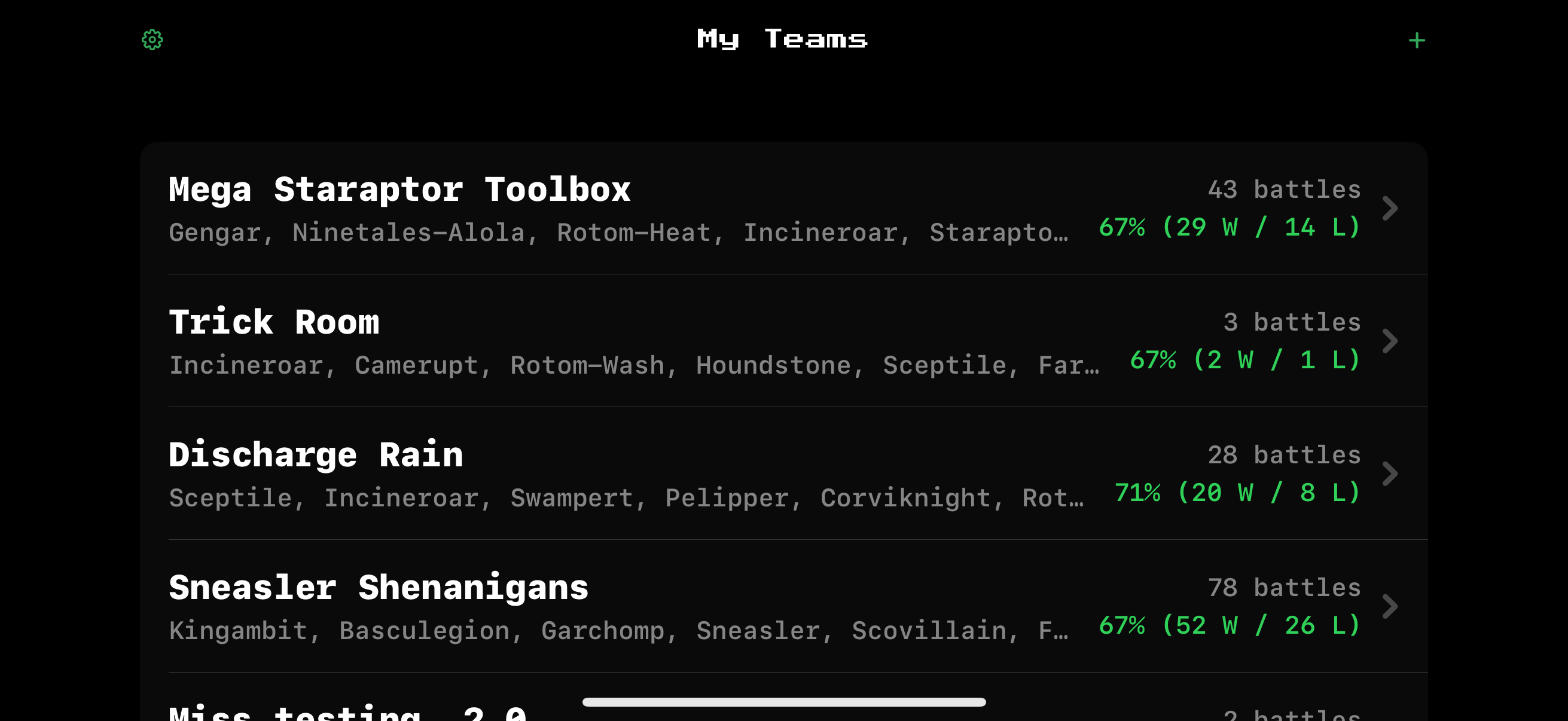
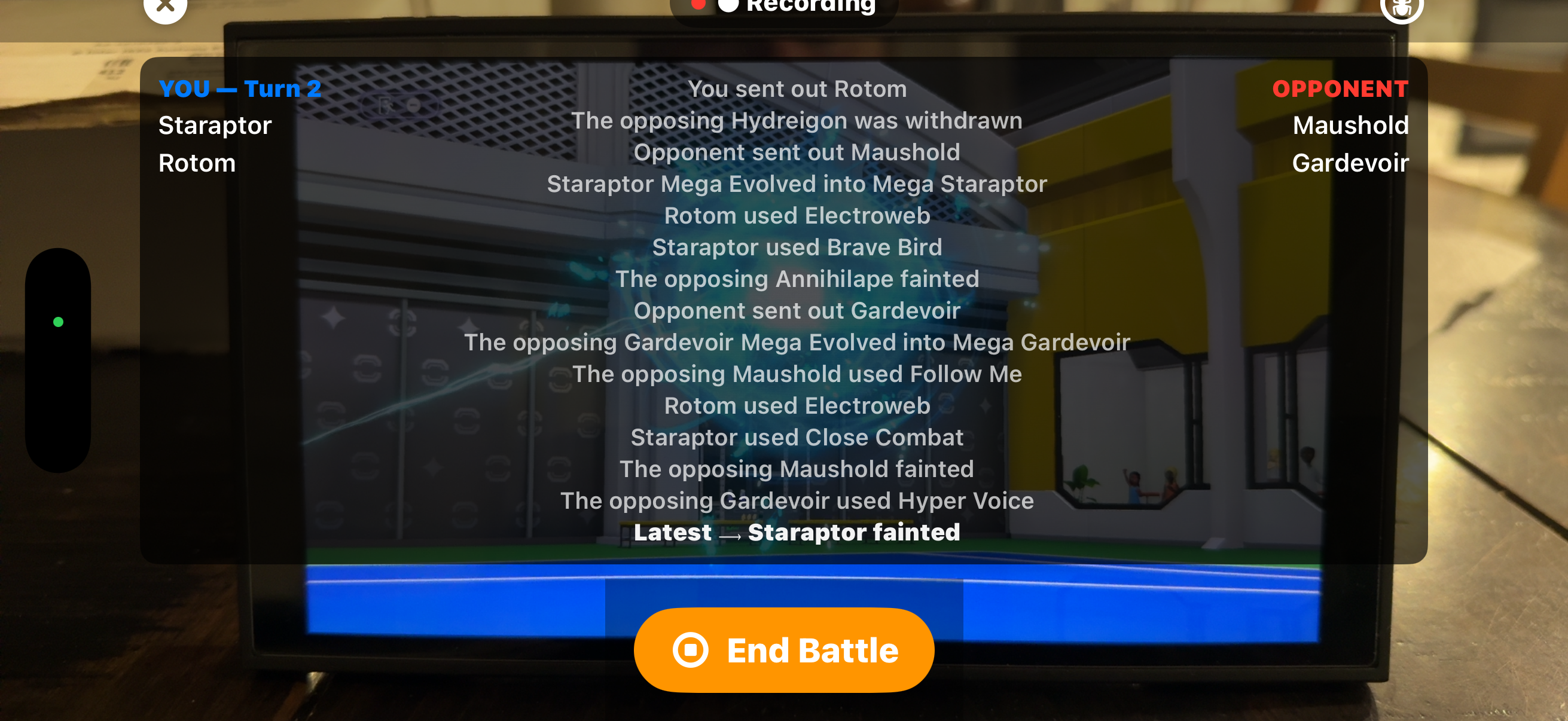
Absolutely, there are currently two ways you can tweak the app. Firstly is purely cosmetic; you can pick from three aesthetic styles. Secondly, you can choose how many battle events are displayed on your screen during the battle the default is two, you can increase it up to fourteen.
Where is the Andriod Version?
Development has started!